impellikProjects - User Guide
Welcome! This guide will help you get the most out of impellikProjects, whether you're managing your first project or you're a seasoned pro. We've designed this platform to be intuitive and powerful, following proven project management methodologies while keeping things simple and approachable.
Table of Contents
Application Overview
What is impellikProjects?
impellikProjects is a comprehensive project management platform that helps you plan, execute, and track projects from start to finish. Think of it as your project command center—everything you need in one place.
Key Benefits
- AI-Enhanced: Smart suggestions for charters, requirements, and tasks
- Industry Best Practices: Follows proven project management methodologies
- Easy Collaboration: Invite team members, assign roles, track progress together
- Visual Planning: Multiple views (Gantt charts, Kanban boards, lists) to see your project your way
- Real-Time Updates: Changes sync instantly—no page refreshes needed
How It Works: The Project Lifecycle
impellikProjects follows a proven project workflow:
1. Charter → 2. Requirements → 3. Skills → 4. Budget → 5. Tasks → 6. ReportsWhy this order? Following this sequence produces the best results:
- Charter: Define what you're doing and why (the foundation)
- Requirements: Detail what the project must deliver
- Skills: Identify capabilities needed and gaps to fill
- Budget: Plan your financial resources
- Tasks: Break down the work into manageable pieces
- Reports: Track progress and communicate with stakeholders
You have flexibility: After completing your charter, you can work on any module. Need just a task list? Jump straight to Tasks. Want to track spending? Go to Budget. However, the recommended sequence enables powerful AI features:
- Requirements → Skills: AI analyzes your requirements to identify needed capabilities and gaps
- Requirements → Tasks: AI generates relevant tasks aligned to your project scope
- Charter + Requirements → Reports: AI creates context-aware status reports with accurate project insights
Think of it this way: You can cook without a recipe, but following one usually produces better results. The system is flexible enough for your workflow while providing guidance for the best outcomes.
Who Uses What?
Organization Owners (Full Control):
- All admin capabilities (see below)
- Delete the entire organization and all its data
- Manage billing and subscription plans (when available)
- Transfer ownership to another user
Organization Admins:
- Create and manage all projects in the organization
- Invite users to projects and assign roles
- Configure organization settings (working days, currency, etc.)
- Access and edit all projects in the organization
Project Managers:
- Create and edit assigned projects
- Build charters, requirements, and task plans
- Track progress and generate reports
- Assign tasks to team members
Team Members (Viewers):
- View project details
- See assigned tasks
- Track their work progress
- Access project reports
Getting Started
Creating Your Organization
What's an Organization? Think of it as your company or team's workspace. All your projects live inside your organization.
Step-by-Step: Create a New Organization
-
Visit the Sign Up Page
- Go to the impellikProjects homepage
- Click the green "Add Your Organization" button in the top right

-
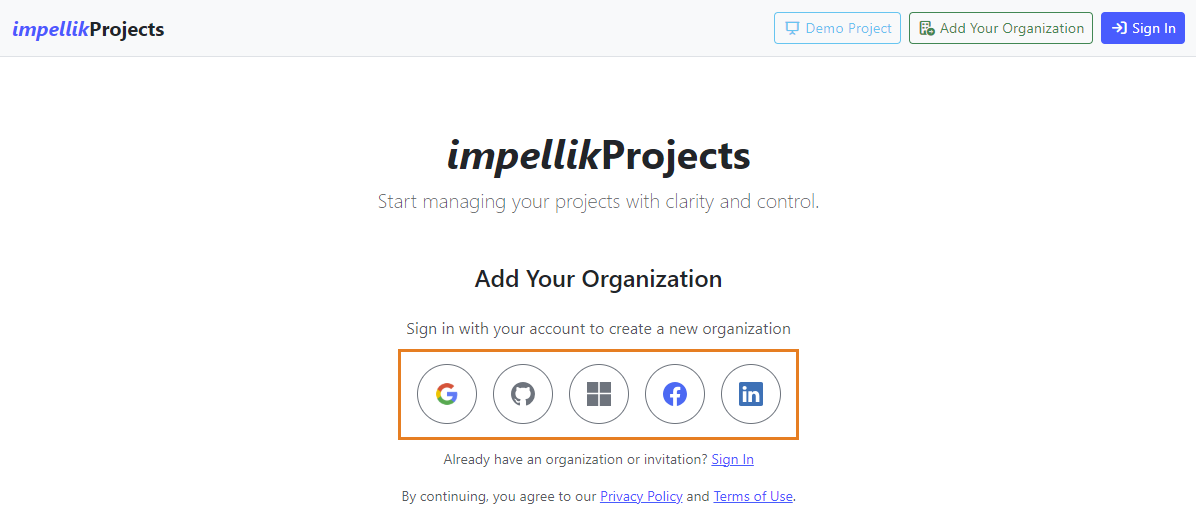
Sign In with Your Account
- Choose your authentication provider (Google, GitHub, Microsoft, Facebook, or LinkedIn)
- Click the icon to sign in
- Authorize impellikProjects to access your basic profile
-
Accept Terms
- Review the Privacy Policy and Terms of Use (opens in new tabs)
- Check the "I have read and agree" box
- This creates a record of your acceptance for compliance
-
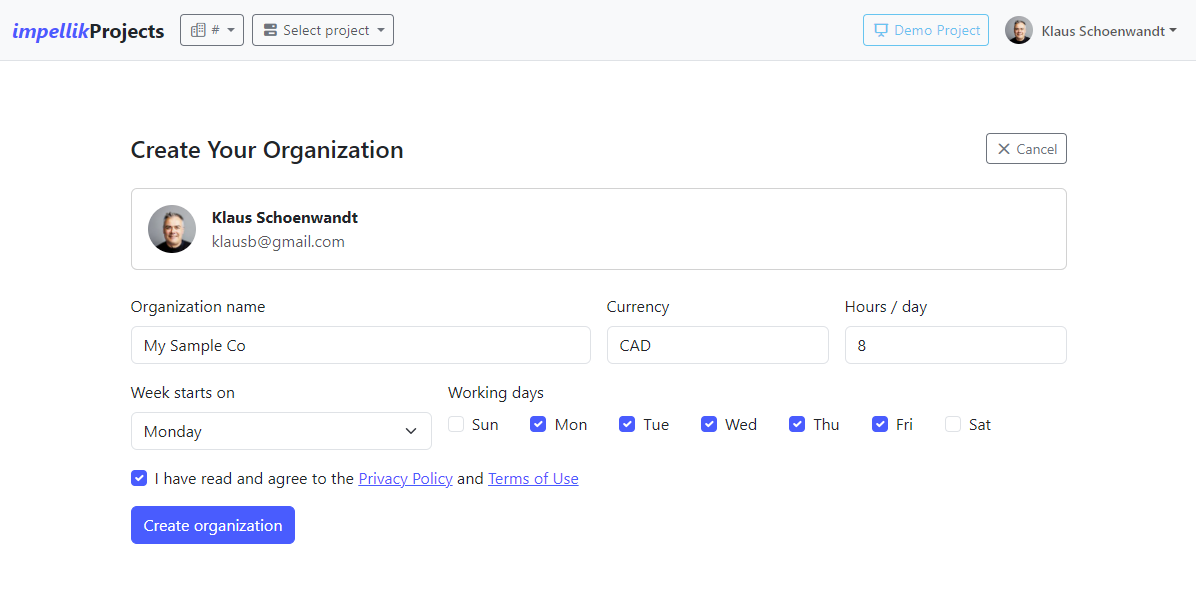
Enter Organization Details
- Organization Name: Your company or team name
- Currency: Default currency for budgets (e.g., USD, CAD, EUR)
- Hours per Day: Standard workday length (usually 8 hours)
- Week Starts On: Sunday or Monday
- Working Days: Check the days your team works (default: Mon-Fri)
Why These Settings Matter:
- Working days affect how the system calculates task durations
- If you select Mon-Thu as working days, a "5-day task" will span over a week (skipping Fri-Sun)
- You can change these settings later in Organization Settings
-
Create Organization
- Click the "Create organization" button
- You'll be taken to your new organization's homepage!
Tip: You become the Owner of the organization you create. This gives you full control to add projects, invite users, and manage settings.
Joining an Existing Organization
Got an Invitation? Someone invited you to join their project. Here's how to accept:
Step-by-Step: Accept an Invitation
-
Receive Invitation Notice
- The organization owner or admin will let you know you've been invited
- They'll provide you with the website URL: impellik.projects.com
- Note: Automated invitation emails are coming after public beta launch
-
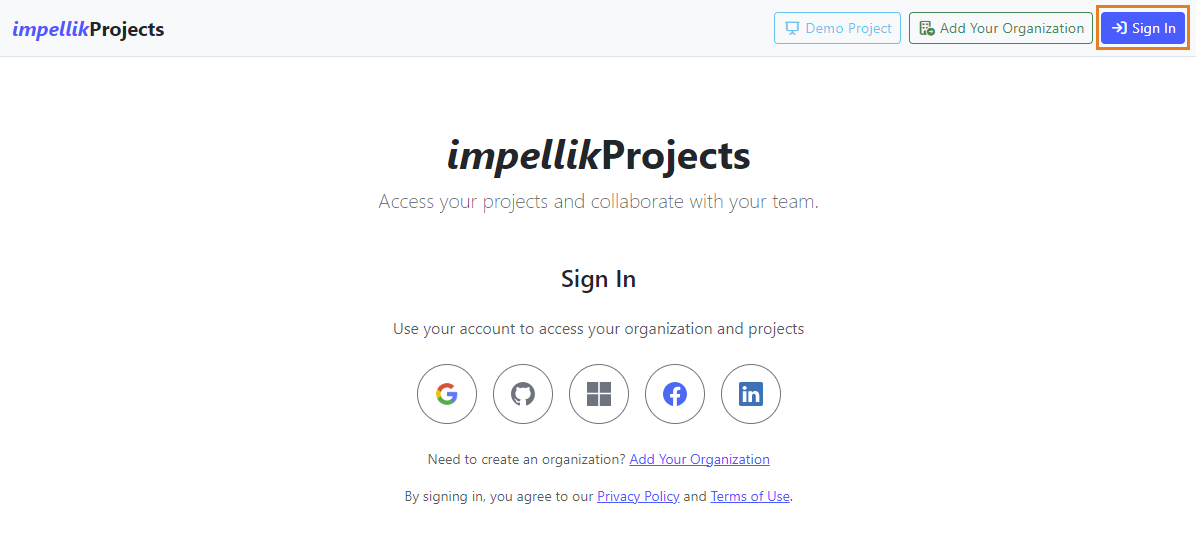
Visit the Website and Sign In
- Go to impellik.projects.com
- Click the blue "Sign In" button (NOT "Add Your Organization")
- Choose your authentication provider
-
Automatic Setup
- The system detects your invitation automatically
- Your account is created and linked to the project
- You're logged in and can start working!
-
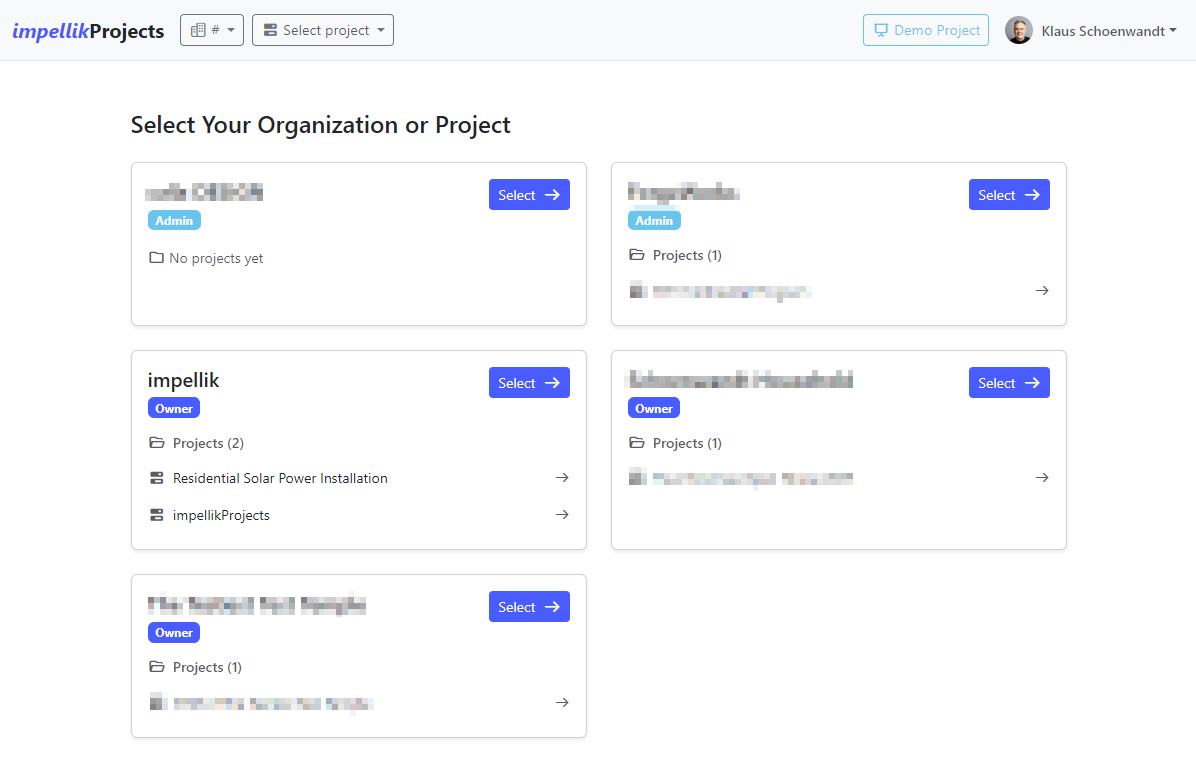
Select Your Organization
- If you belong to multiple organizations, you'll see a selection screen
- Pick the organization you want to work in
- You can switch organizations later from the navigation bar
What Role Do I Have?
- Check the badge next to your organization name
- Admin: Full access to all projects
- Manager: Can edit specific projects you're assigned to
- Viewer: Read-only access to view projects
Navigating the Interface
The Navigation Bar
The top navigation bar is your control center:
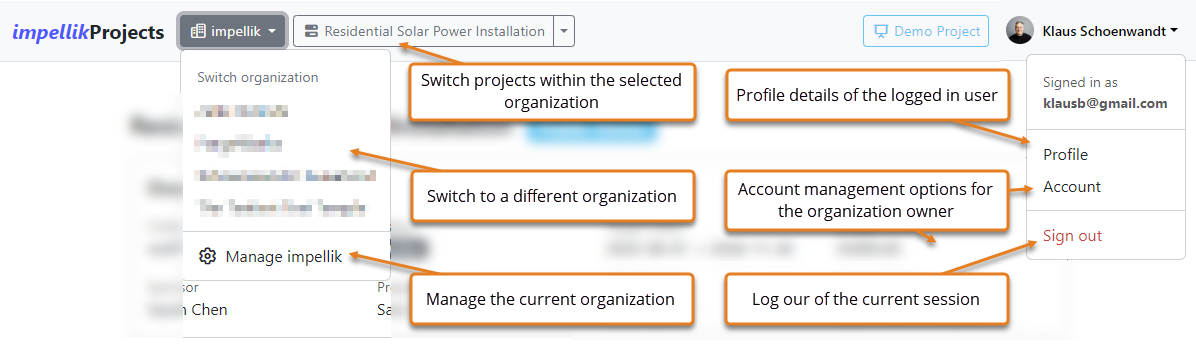
Left Side:
- Organization Selector: Switch between organizations (if you belong to multiple)
- Project Selector: Choose which project you're working on
- Click the project name to go to the Project Overview
- Use the dropdown arrow to see all your projects
Right Side:
- Demo Project: View a sample project (great for learning!)
- Profile Menu: Your name and photo
- Click to see Profile, Account (owners only), and Sign Out
The Project Overview Dashboard
When you select a project, you'll see the Project Overview—your project's home base.
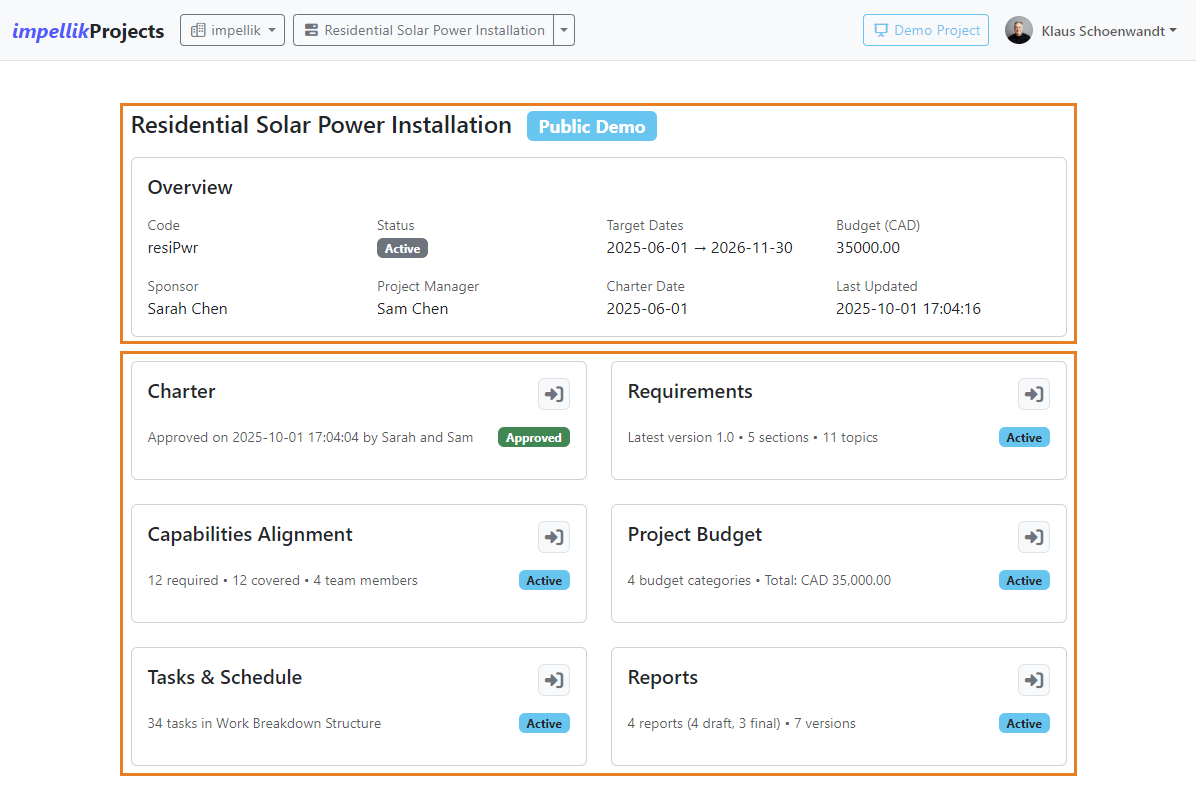
The Overview Shows:
-
Project Charter Card
- Status: Approved or In Progress
- Action: Start or view the charter
-
Requirements Card
- How many requirements you've defined
- Version number (requirements can be versioned)
- Action: View or add requirements
-
Capabilities Card
- Skills needed vs. skills your team has
- Gap analysis showing what's missing
- Action: Manage skills
-
Budget Card
- Total budget and spending
- Currency from your organization settings
- Action: View budget details
-
Tasks Card
- Task completion status
- Number of tasks in progress
- Action: Go to task list
-
Reports Card
- Number of reports generated
- Draft vs. final reports
- Action: View or create reports
Navigation Tip: Click "View" or the card itself to jump to that section.
Feature Documentation
Project Charter
What is a Charter? Think of it as your project's founding document. It answers: What are we doing, why, and how will we know we succeeded?
Why Start Here? Industry best practice says you define the "what and why" before you plan "how and when." A charter gets everyone aligned before work begins.
Creating a Charter
You have two paths to choose from:
Path 1: AI-Guided Charter (Recommended for New Users)
Perfect if you're new to charters or want guidance along the way.
Step-by-Step:
-
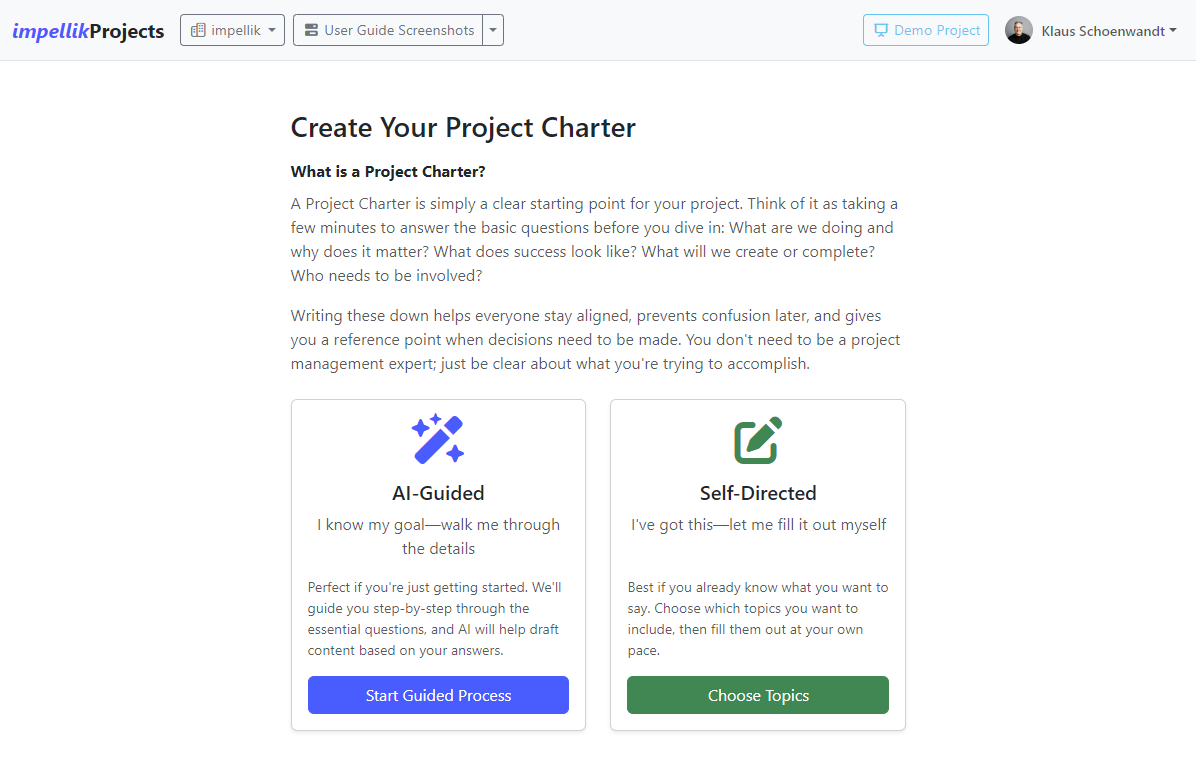
Start the Charter
- From the Project Overview, click "Start Charter" on the Charter card
- Select "AI-Guided"
-
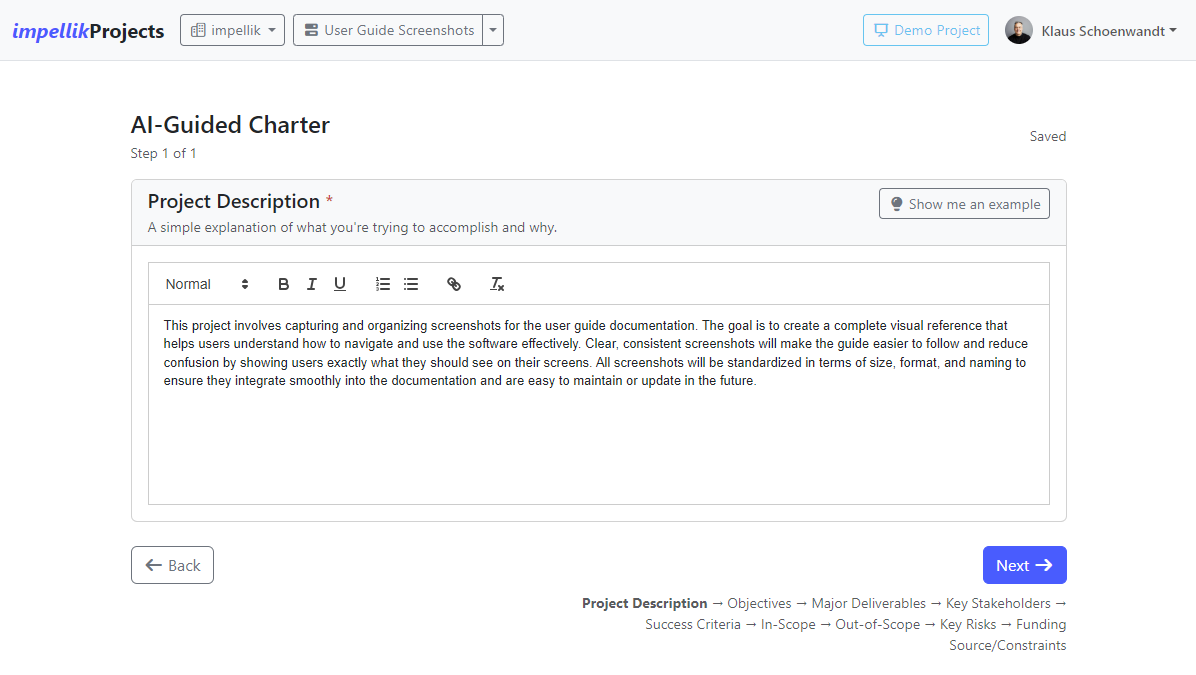
Follow the Steps
- The AI walks you through one topic at a time
- Topics include: Purpose, Objectives, Scope, Success Criteria, and more
- For each topic, you'll see:
- A description of what to include
- Example content based on your project type
- A text editor to write your content
-
Use AI Suggestions
- Click "Generate with AI" to get a draft
- The AI uses your project name and previous answers to create relevant content
- Edit the AI's suggestion to match your needs—it's a starting point, not the final answer
-
Progress Through Topics
- Auto-save happens every second—you won't lose work
- Click "Next" to move to the next topic
- From Step 4 onward, you can click "Done - View Charter" if you're finished
-
Review and Approve
- When you're done, you'll see a read-only charter view
- Click "Approve Charter" and enter the approver's name
- Once approved, you can proceed to Requirements!
Path 2: Self-Directed Charter (For Experienced Users)
All charter fields on one page—fill out what you need, skip what you don't.
Step-by-Step:
-
Start the Charter
- From the Project Overview, click "Start Charter"
- Select "Self-Directed"
-
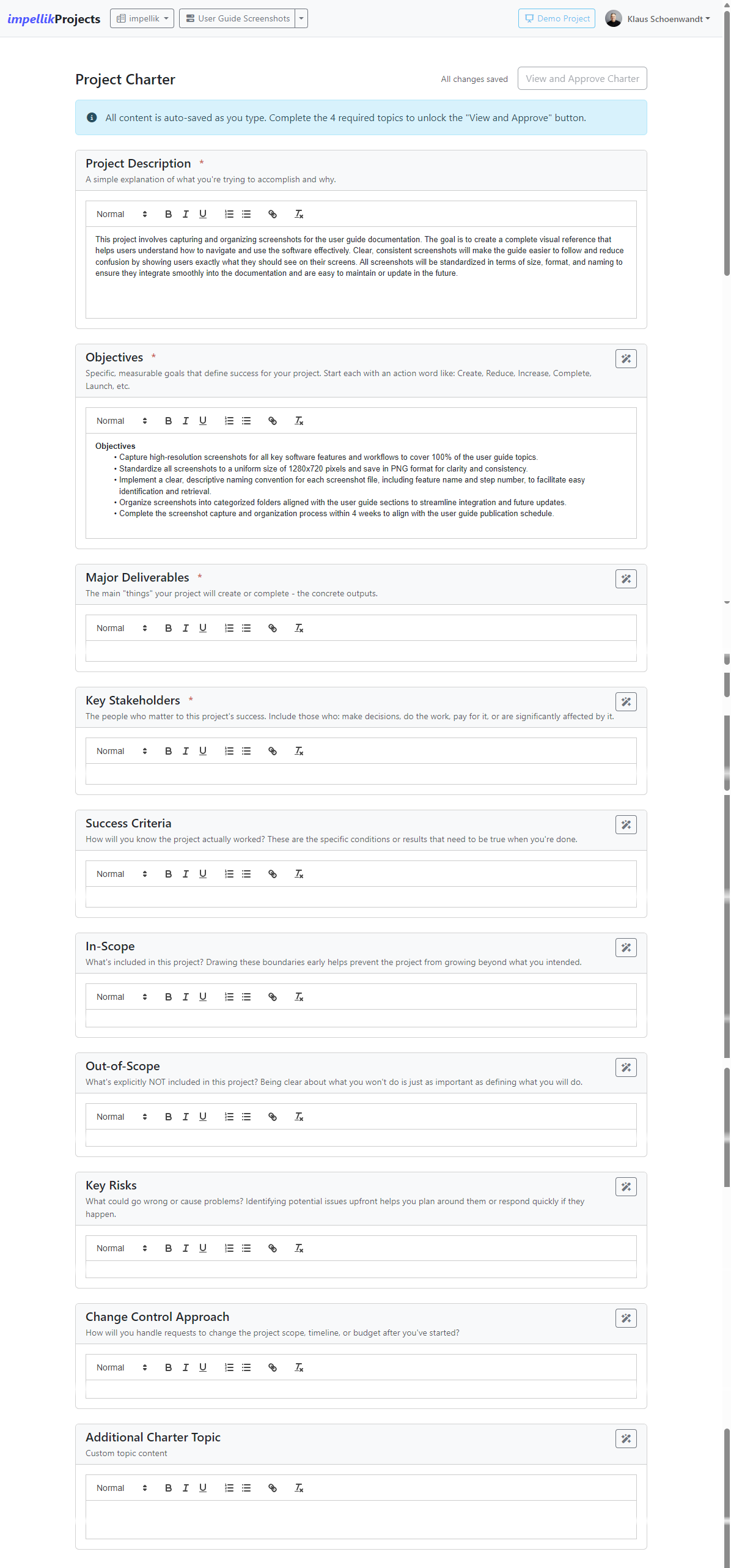
Fill Out the Form
- You'll see all charter topics at once
- Required fields: Purpose, Objectives, Scope, Success Criteria
- Optional fields: Strategic Alignment, KPIs, Milestones, etc.
-
Custom Topics
- Scroll to "Other Topics"
- Add custom sections for anything not covered
- Great for industry-specific requirements
-
Save and Approve
- Click "Save Charter"
- Review the read-only view
- Approve when ready
Editing a Charter
Before Approval:
- Navigate to Charter from the project overview
- Click "Edit Charter" to make changes
- Changes are auto-saved as you work
After Approval:
- The charter becomes read-only and cannot be edited
- This ensures approved charters remain stable and unchanged
Requirements
What are Requirements? The detailed list of what your project must deliver. Think of it as the "shopping list" for your project.
Why Requirements Matter: They ensure everyone agrees on what "done" looks like. Clear requirements prevent scope creep and missed expectations.
Adding Requirements
You have two approaches:
Option 1: AI-Generated Requirements (Fastest)
If you want to jumpstart your requirements, let the AI generate them based on your charter:
Step-by-Step:
-
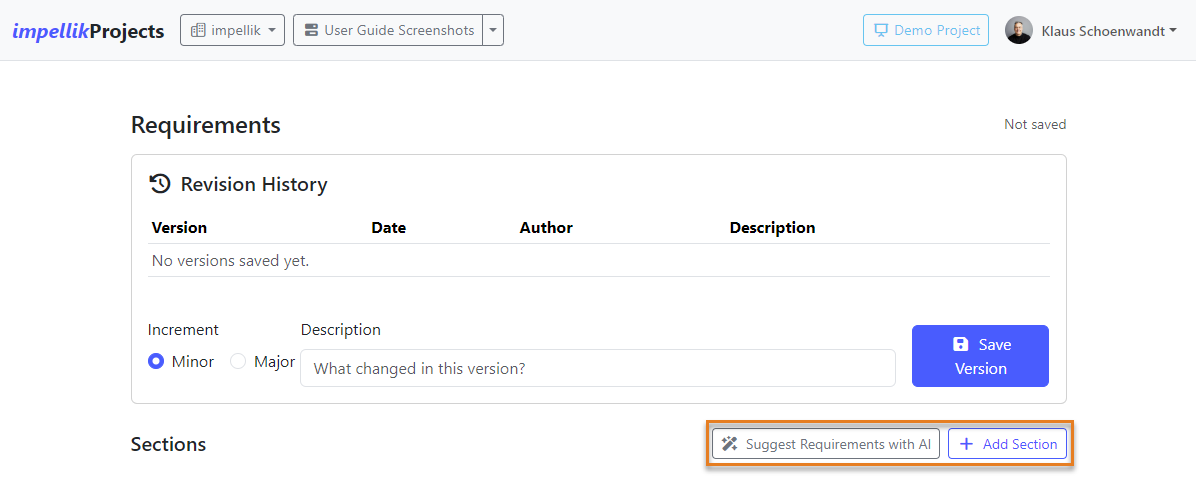
Go to Requirements
- From Project Overview, click "View Requirements"
- If this is your first time, you'll see a welcome screen
-
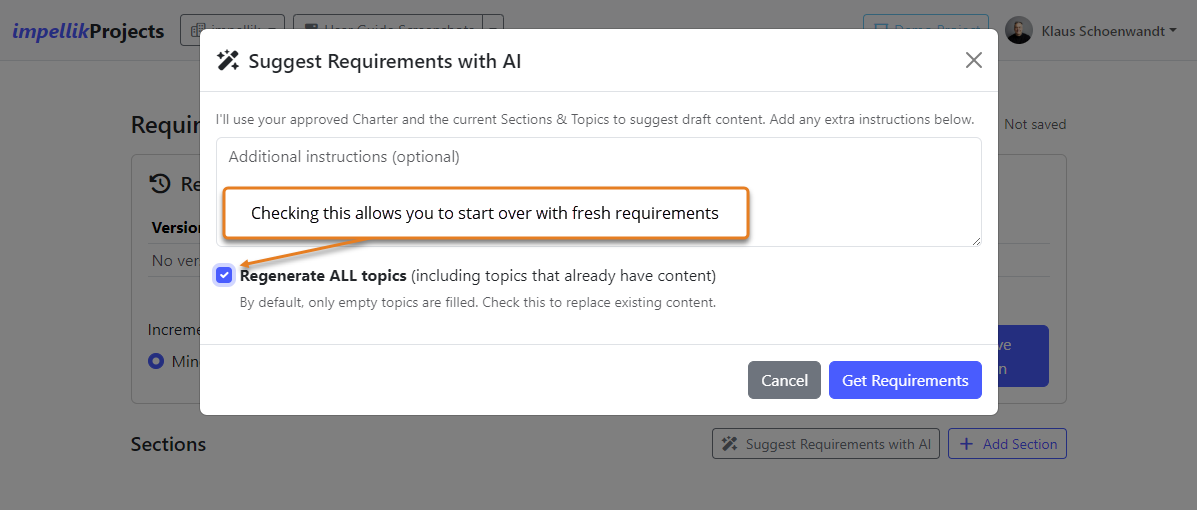
Click "Suggest Requirements with AI"
- The green button at the top of the page
- The AI reads your project charter to understand context
-
AI Generates Requirements
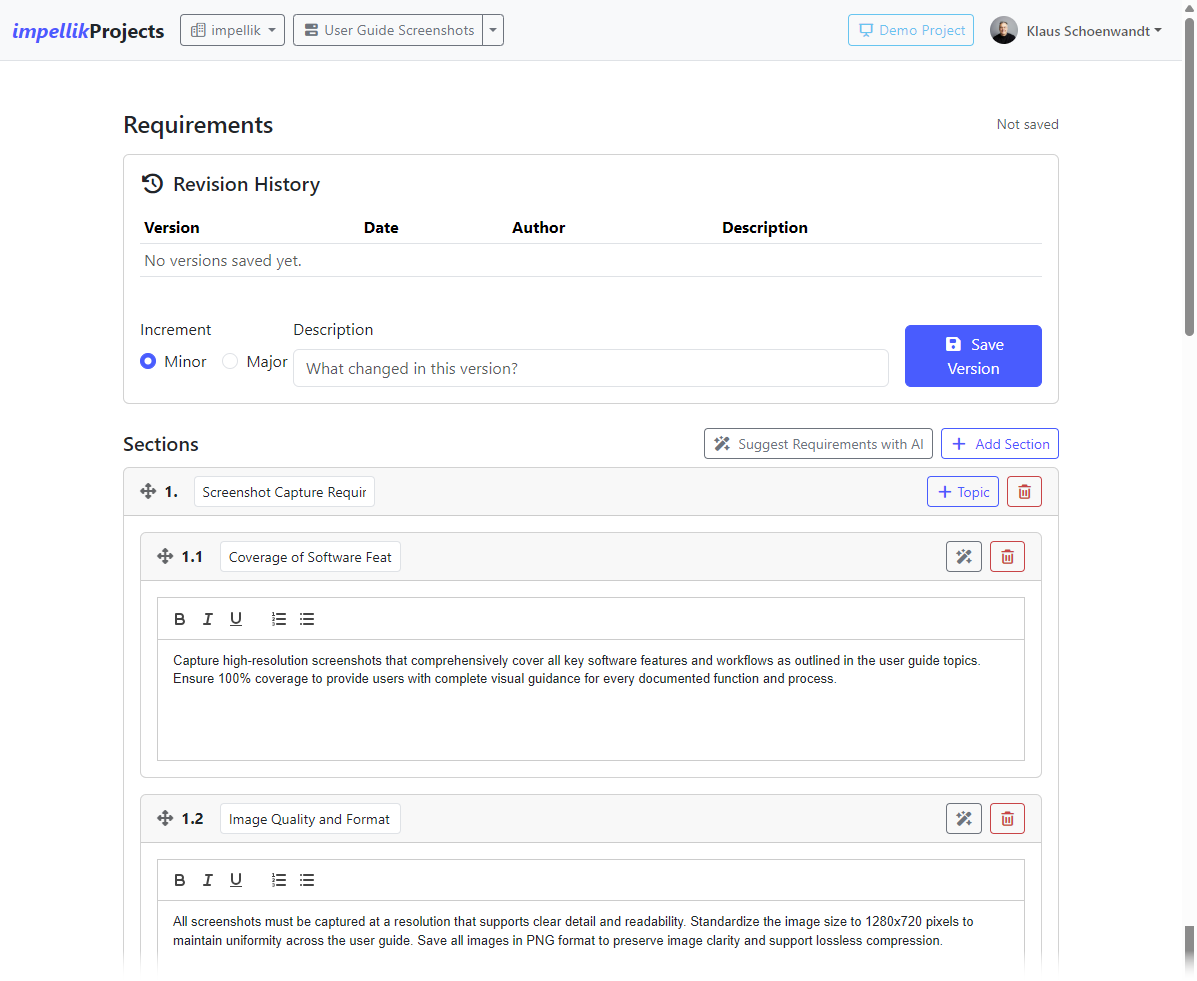
- The AI creates sections and topics based on your project
- It organizes them into logical categories (e.g., Functional, Technical, Business)
- Each topic includes detailed content
-
Review and Edit
- The AI-generated requirements are a starting point
- Edit any section or topic to match your needs
- Add more topics or delete ones that don't apply
- Reorder by dragging sections and topics
Option 2: Manual Entry (Full Control)
Build requirements from scratch, one section and topic at a time:
Step-by-Step:
-
Go to Requirements
- From Project Overview, click "View Requirements"
-
Create a Section
- Click "Add Section"
- Name your section (e.g., "User Interface," "Performance," "Security")
- Sections help organize related requirements
-
Add Topics (Requirements)
- Click "Add Topic" within a section
- Title: Short name (e.g., "Login Page")
- Content: Detailed description of what's needed
- Use the rich text editor to format (bold, lists, etc.)
-
Organize with Drag-and-Drop
- Drag sections and topics to reorder them
- Put the most important items at the top
Versioning Requirements
As your project evolves, requirements change. Versioning tracks these changes.
When to Create a New Version:
- Major scope changes
- After a project milestone
- When stakeholders request significant additions
Step-by-Step:
-
Create a Version
- Click "Create New Version"
- The system copies your current requirements
- Version number increments (e.g., 1.0 → 2.0)
-
Make Changes
- Edit the new version as needed
- Previous versions remain unchanged (historical record)
-
View Previous Versions
- Use the version dropdown to see older versions
- Read-only view of historical requirements
Skills & Capabilities
What are Skills? The capabilities your team needs to deliver the project. This could be technical skills (e.g., "Python programming") or soft skills (e.g., "Stakeholder communication").
Why Track Skills? The Skills module helps you identify gaps—what you need but don't have—and match available team capabilities to project requirements. This informs hiring, training, or contracting decisions.
Understanding Criticality vs. Skill Level:
- Criticality (H/M/L): How important this skill is to project success. High criticality skills are mission-critical.
- Skill Level (0-4): Proficiency required or available (0=None, 1=Basic, 2=Intermediate, 3=Advanced, 4=Expert)
Required Skills
This section defines what skills your project needs and at what proficiency level.
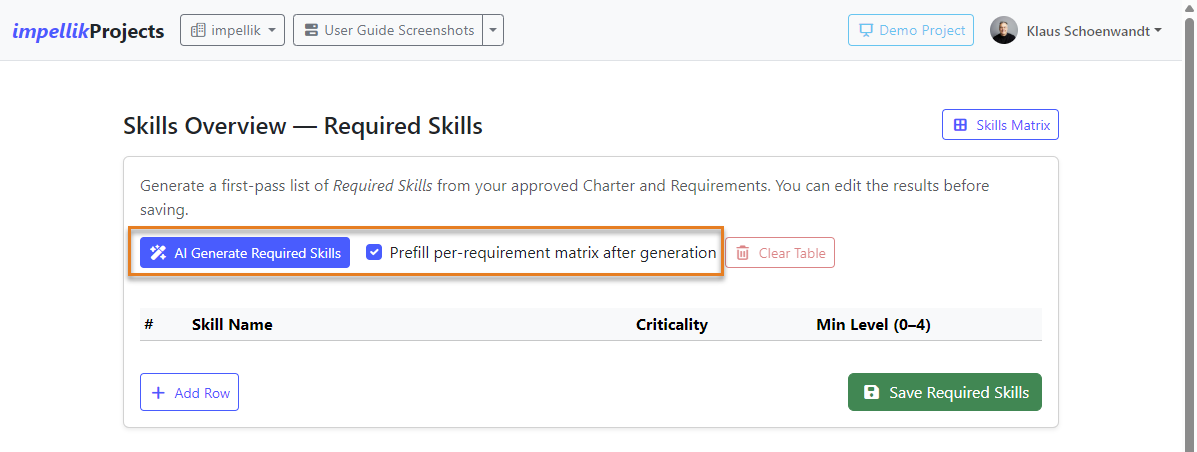
Option 1: AI-Generated Required Skills (Recommended)
The fastest way to get started is to let AI analyze your requirements and suggest needed skills:
-
Click "AI Generate Required Skills"
- The system analyzes your requirements document
- AI identifies technical and soft skills needed
- Skills are automatically added to the table
-
Optional: Check "Prefill per-requirement matrix after generation"
- If checked, AI will automatically map which requirements need which skills
- This populates the Skills Matrix (see below) in one step
- If unchecked, you can manually map skills to requirements later
-
Review and Adjust
- Each skill has:
- Skill Name: What capability is needed
- Criticality: High (H), Medium (M), or Low (L)
- Min Level: Minimum proficiency required (0-4)
- Edit any values by clicking in the table cells
- Delete irrelevant skills using the trash icon
- Add additional skills manually if needed
- Each skill has:
Option 2: Manual Entry
If you prefer full control, you can manually build your required skills list:
- Click "Add Skill"
- Enter the skill name
- Set criticality (H/M/L)
- Set minimum level required (0-4)
- Repeat for all required skills
Skills Matrix
After defining required skills, you can map which requirements need which skills:
- Click "Skills Matrix" button to open the mapping interface
- Manual Mapping:
- Checkboxes show requirement (rows) × skill (columns)
- Click to toggle whether a requirement needs a specific skill
- AI Prefill:
- Click "AI Prefill"
- Click "Run AI Analysis" to let AI map requirements to skills
- Review and adjust the suggested mappings
- Click the green "Apply Selection" button
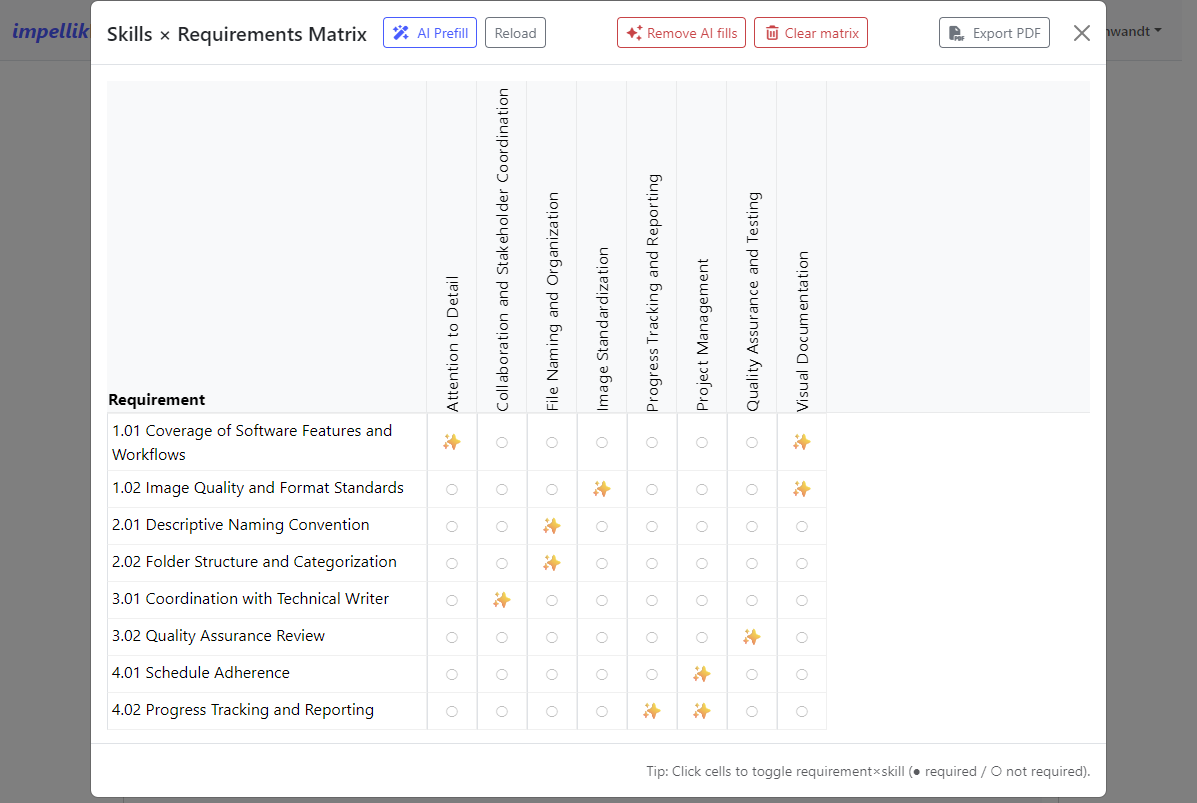
Why use the matrix? It creates a precise connection between what you need to deliver (requirements) and what capabilities are necessary (skills). This feeds into the analysis that shows gaps.
Available Skills
This section tracks your actual team members and what skills they bring.
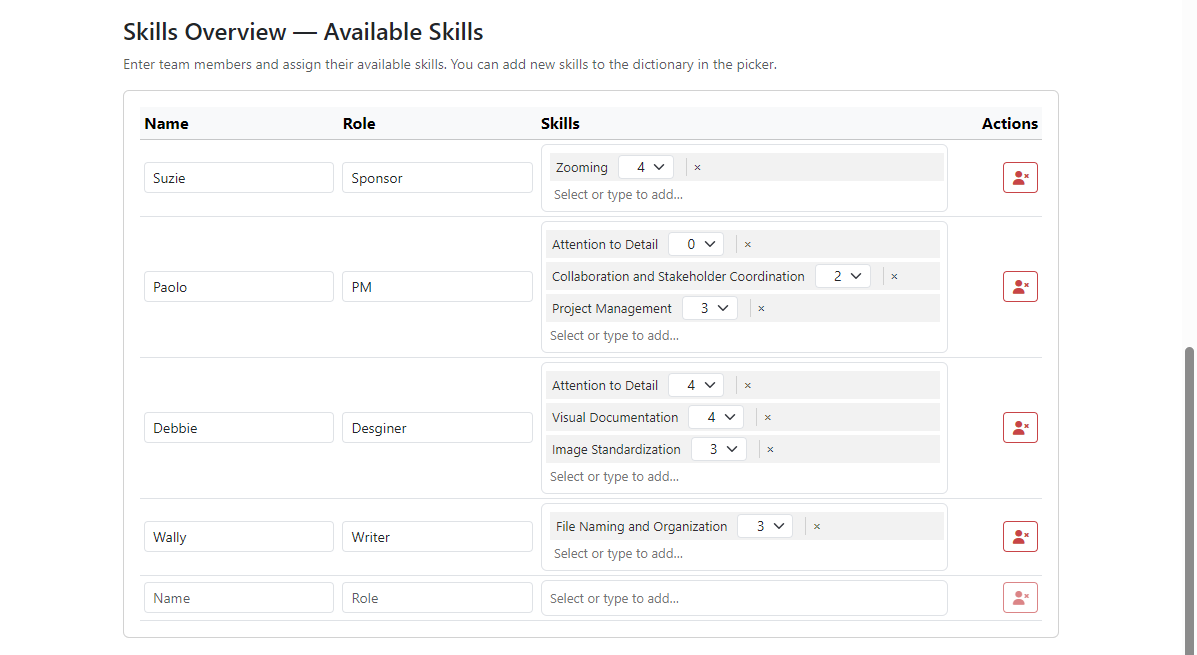
Important: Team members here are independent of invited users. This is where you model your available workforce and their capabilities, regardless of whether they have system accounts.
Step-by-Step:
-
Add a Team Member
- Blank row is always available at the bottom
- Enter Name (e.g., "Sarah Johnson")
- Enter Role (e.g., "Senior Developer", "Project Coordinator")
-
Assign Skills to the Member
- Click in the Skills field
- Type to search existing skills or create new ones
- Each skill appears as a chip with a level dropdown (0-4)
- Set the proficiency level for each skill this person has
- Example: "Python (3)" means this person has Advanced Python skills
-
Auto-Save
- Changes save automatically after you stop typing
- No need to click a save button
-
Add Multiple Members
- Each team member gets their own row
- Build your complete available workforce
- You can add/remove/edit at any time
Skills Dictionary: As you add skills, they're added to a shared organizational dictionary. This ensures "Python" means the same thing across all your projects and prevents duplicates.
Skills Gap Analysis
This section performs intelligent gap analysis comparing required skills to available skills.
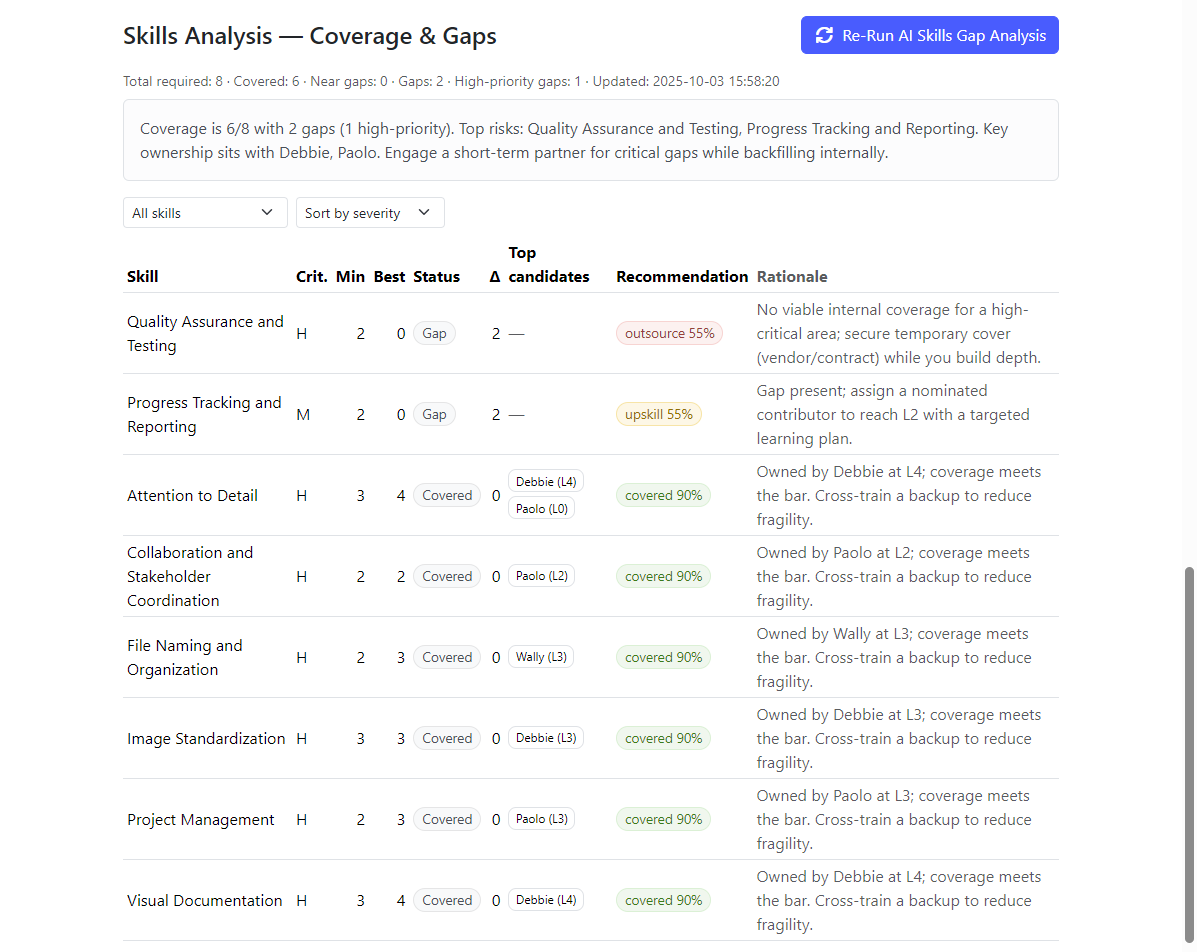
Running the Analysis:
-
Click "Perform AI Skills Gap Analysis"
- AI compares required skills (from Part 1) to available skills (from Part 2)
- Uses the Skills Matrix to understand requirement-skill connections
- Calculates coverage, gaps, and recommendations
-
Understanding the Results:
The analysis table shows:
- Skill: The required skill name
- Crit.: Criticality level (H/M/L)
- Min: Minimum level required (from Required Skills)
- Best: Highest level available on your team (from Available Skills)
- Status:
- Covered (green): Team has sufficient skill level
- Near gap (amber): Team is 1 level below required
- Gap (red): Team is 2+ levels below required
- Δ (Delta): How many levels short you are (Min - Best)
- Top candidates: Team members who have this skill, with their levels
- Recommendation: AI suggests action (Covered, Upskill, Cover, Outsource)
- Rationale: AI explains why it made this recommendation
-
Filter and Sort:
- Filter by status: Show all skills, gaps only, or high criticality only
- Sort options: By severity (default), name, or criticality
-
AI Narrative Summary:
- At the top, AI provides a plain-English summary of your overall skill posture
- Example: "15 of 17 skills covered; 2 gaps (1 high-priority). Consider upskilling for React (need L3, have L2) or hiring for Kubernetes (need L3, have L0)."
Interpreting Recommendations:
- Covered: No action needed, team is ready
- Upskill: Close gap through training (when delta is small)
- Cover: Need to hire or assign someone with this skill
- Outsource: Consider contractor or external resource (often for low-criticality or specialized skills)
Using the Analysis:
- Export findings to support hiring justifications
- Identify training priorities for existing team
- Adjust project scope if critical gaps can't be filled
- Track coverage over time as you add team members or upskill
Budget
What is a Budget? Your project's financial plan—how much you expect to spend and on what.
Why Track Budget? It keeps spending on track and helps you report financial status to stakeholders.
Setting Up Your Budget
Step-by-Step:
-
Go to Budget
- From Project Overview, click "View Budget"
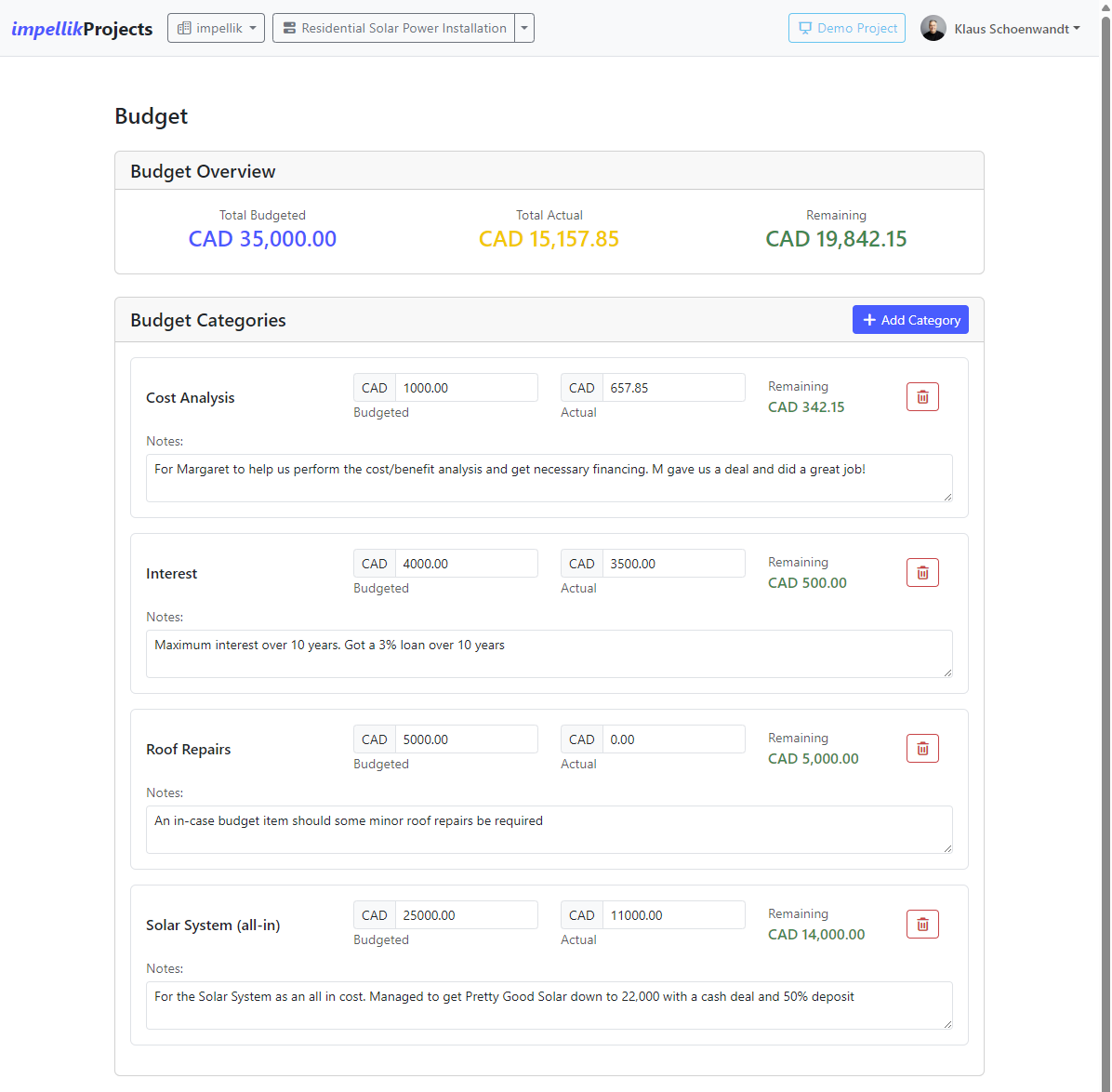
- The system automatically creates budget categories based on your requirements
-
Understand Budget Categories
The system creates categories from three sources:
- Requirement Topics: Each topic from your Requirements automatically becomes a budget category
- Example: If you have a requirement topic "User Authentication", it becomes a budget category
- This connects your requirements directly to costs
- Contingency: Standard category for buffer/reserve funds
- Miscellaneous: Standard category for items that don't fit elsewhere
- Custom Categories: You can add your own (e.g., "Labor", "Equipment", "Travel", "Marketing")
- Requirement Topics: Each topic from your Requirements automatically becomes a budget category
-
Enter Budget Amounts
- Budgeted Amount: What you plan to spend on this category
- Actual Amount: What you've spent so far
- Notes: Optional details about this budget line
- The system calculates variance automatically (green = under budget, red = over budget)
-
Add Custom Categories
- Click "Add Category"
- Enter category name (e.g., "Software Licenses", "Contractor Fees")
- Set budgeted amount
- Custom categories let you track costs not tied to specific requirements
-
View Budget Summary
- At the top, see total budgeted vs. total actual spending
- Currency comes from your organization settings
- Variance shows if you're under or over budget overall
Updating Actual Costs
As you spend money, update the Actual Amount field:
- Enter the amount spent
- Save changes
- The variance updates automatically (green = under budget, red = over budget)
Tasks
What are Tasks? The individual work items that make up your project. Tasks are organized in a hierarchy (WBS - Work Breakdown Structure).
Why Use Tasks? They break big projects into manageable pieces, show dependencies, and track progress. This is where planning meets execution.
Understanding the WBS (Work Breakdown Structure)
The WBS is like a family tree for your project work. Here's an example using vacation planning:
1. Plan Vacation
   1.1 Choose Destination
   1.2 Set Budget
2. Book Travel
   2.1 Book Flights
   2.2 Reserve Rental Car
3. Arrange Accommodations
   3.1 Research Hotels
   3.2 Book Hotel
4. Plan Activities
   4.1 Make Restaurant Reservations
   4.2 Book Tour Tickets
Key Concepts:
- Parent Tasks: High-level groupings (e.g., "Plan Vacation", "Book Travel")
- Child Tasks: Specific work items (e.g., "Choose Destination", "Book Flights")
- Leaf Tasks: Tasks with no children—actual work happens here (e.g., "Set Budget", "Reserve Rental Car")
- WBS Numbering: Automatically maintained (1, 1.1, 1.1.1, etc.)
Parent Task Behavior:
- Parents show rolled-up data from their children
- You can't manually enter effort, dates, or completion % on parents
- Parents update automatically when children change
Creating Tasks
Step-by-Step:
-
Go to Tasks
- From Project Overview, click the Tasks & Schedule card's Go To icon (→])
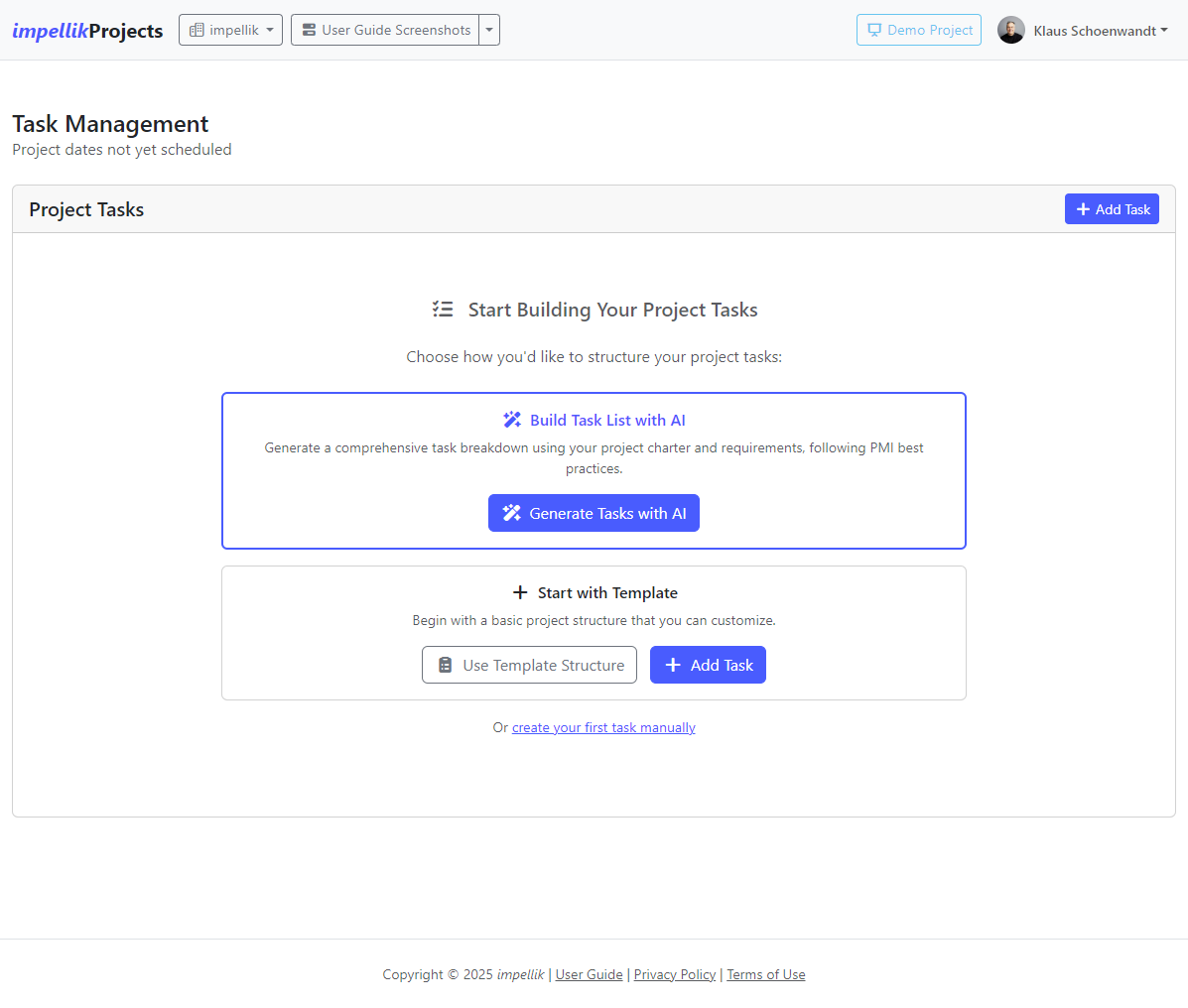
- If you have no tasks yet, you'll see two options:
- Generate Tasks with AI (recommended): AI creates a complete WBS from your charter and requirements
- Add Task or Use Template Structure: Start manually
-
Add Your First Task Manually
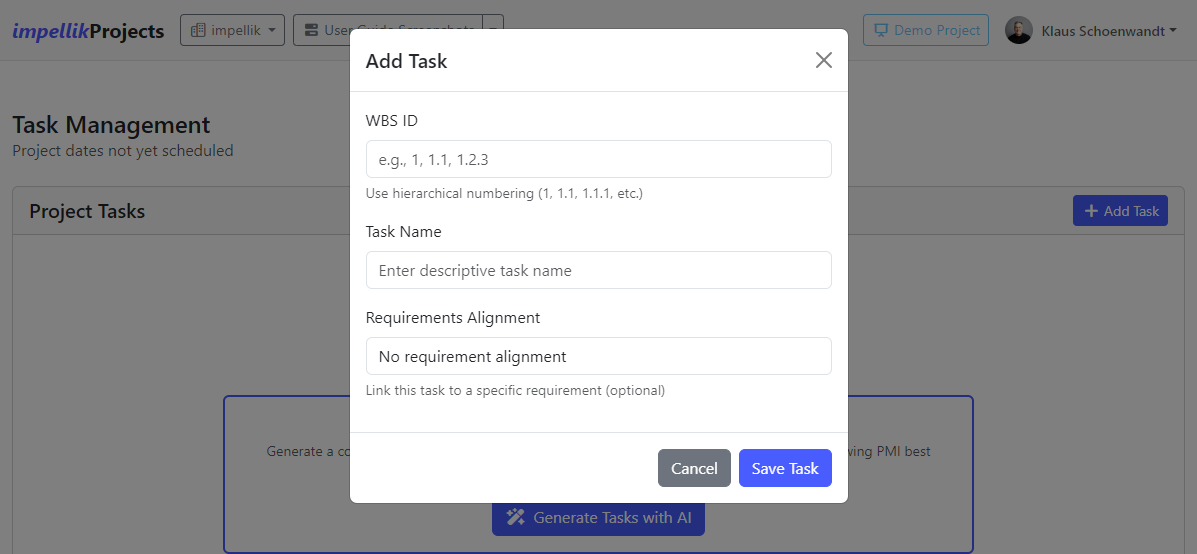
- Click the blue "Add Task" button
- A simple modal appears with just three fields:
- WBS ID: Hierarchical number (e.g., 1, 1.1, 2.1.3)
- Task Name: What needs to be done (e.g., "Book Flights")
- Requirements Alignment: Optionally link to a requirement section
-
Save and View
- Click "Save Task"
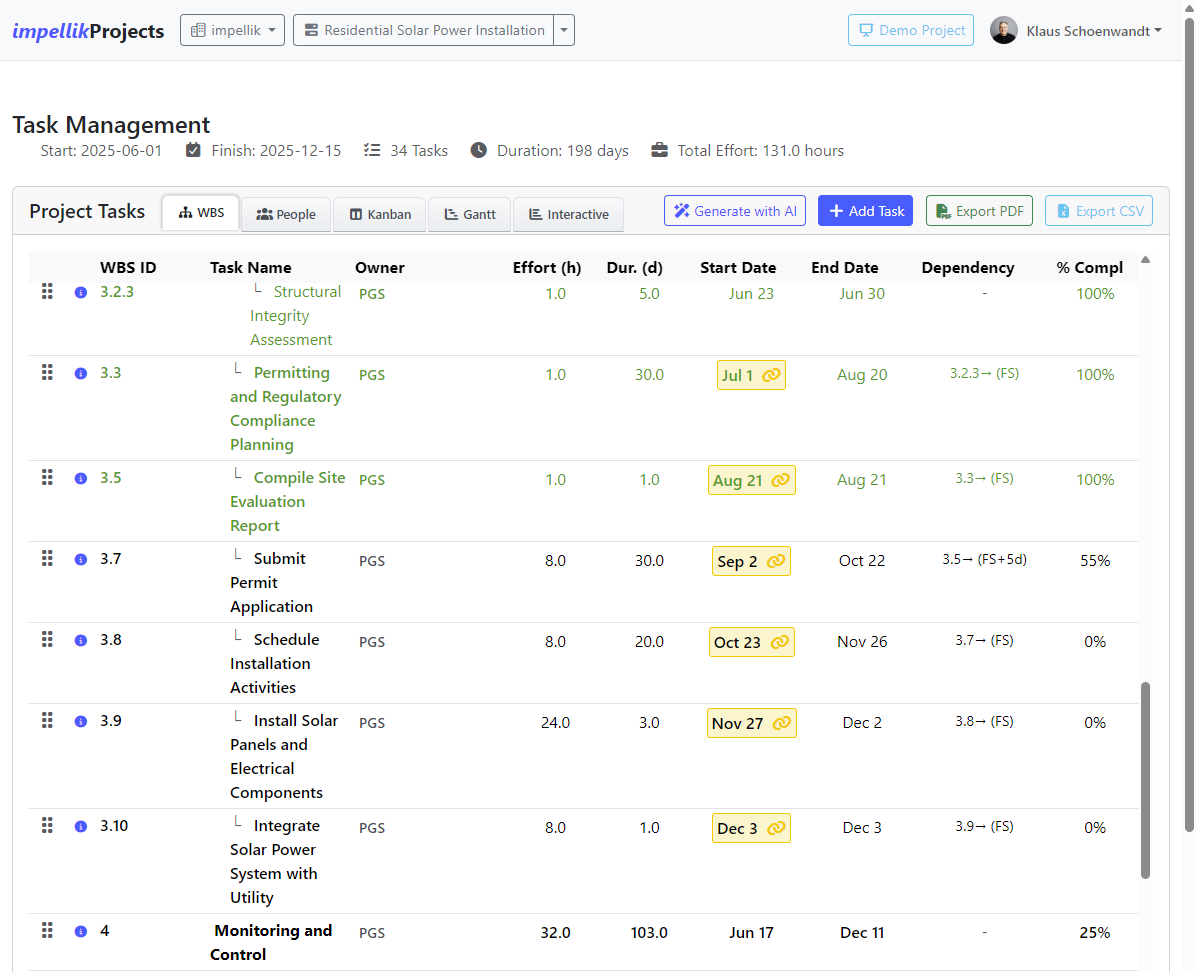
- Your task appears in the WBS Table view
- Notice: The Add Task modal is intentionally simple—detailed scheduling comes next
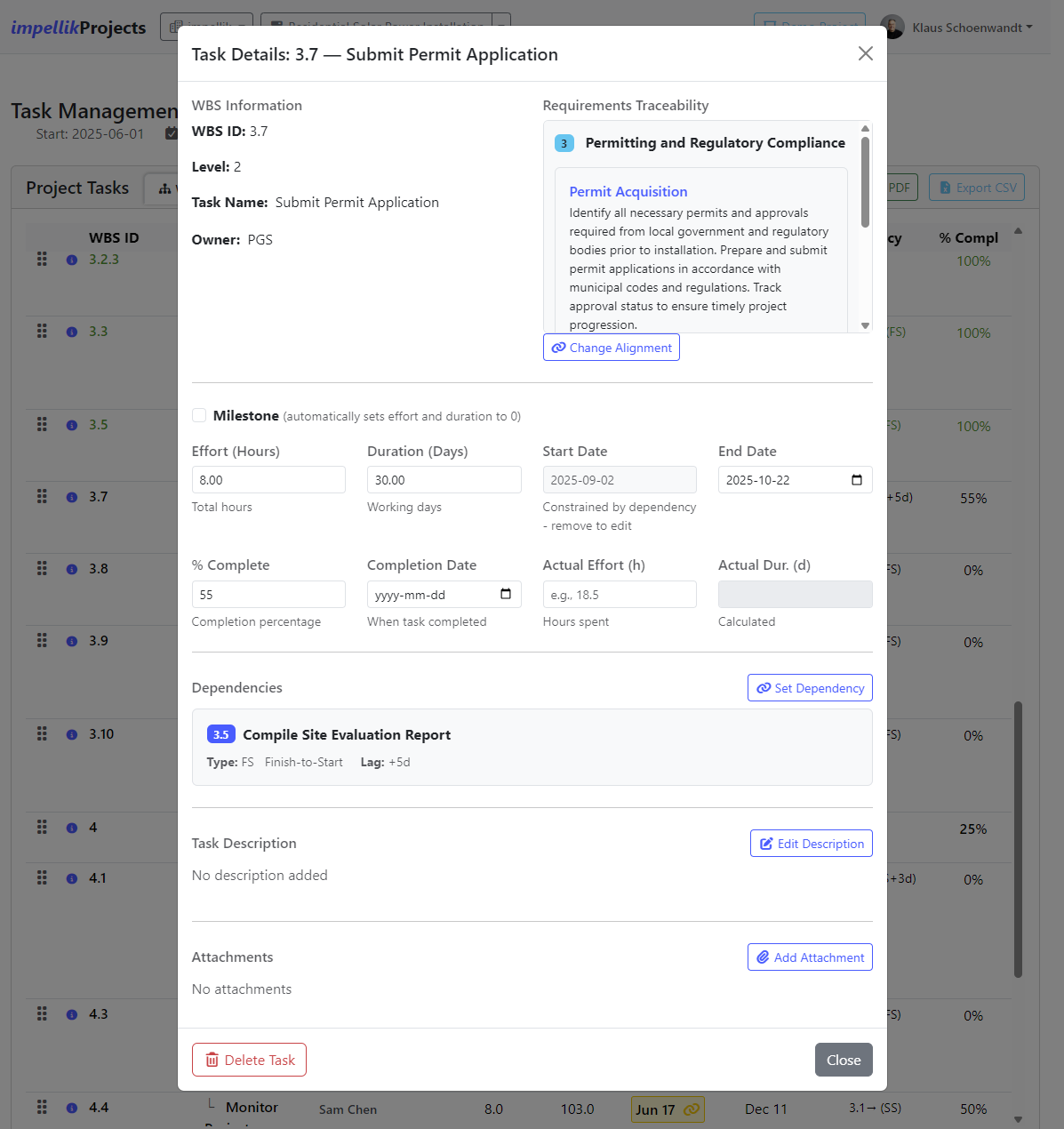
Task Details Modal
For complete task information and scheduling, click the info icon on any task row:
The modal shows and lets you edit:
-
Basic Info:
- WBS ID (read-only), Level (read-only)
- Task Name (editable by double-click)
- Owner (editable by double-click)
- Requirements Alignment (change with button)
-
Milestone Checkbox:
- Check if this is a milestone (zero-duration marker)
- Automatically sets effort and duration to 0
- Indicated with a flag icon in the task list
-
Scheduling (2-of-3 Smart Logic):
- Effort (hours): Total work hours
- Duration (working days): Calendar days accounting for organization's working days
- Start Date: When task begins
- End Date: When task finishes
- The system calculates the missing value when you provide 2 of: Effort, Duration, Start Date, End Date
-
Completion Tracking:
- % Complete: Progress (0-100)
- Completion Date: When task was finished (auto-set when % = 100)
- Actual Effort (hours): Hours actually spent (mandatory when % complete = 100%)
- Actual Duration (days): Calculated automatically from dates
-
Dependencies:
- Click "Set Dependency" to make this task wait for another task
- Choose predecessor task, relationship type (FS/SS/FF), and lag/lead days
- See Task Dependencies section below for details
-
Task Description:
- Click "Edit Description" to add detailed notes using the rich text editor
- Supports formatting, lists, links, etc.
- Saves automatically when you click "Save Description"
-
Attachments:
- Click "Add Attachment" to upload files
- Supports multiple files
- Attached files appear with download/delete options
-
Delete Task:
- Red "Delete Task" button at bottom left of modal
- Warning: Deleting a parent task will irrevocably delete all child tasks beneath it
- Confirm the deletion when prompted
Task Views
The Tasks page offers 5 different views. Pick the one that fits your workflow:
1. WBS Table View
The classic hierarchical list—great for detailed planning.
Features:
-
See all task details in columns: WBS ID, Task Name, Owner, Effort, Duration, Start Date, End Date, Dependency, % Complete
-
Inline editing - All task details can be edited directly without opening a modal:
- Double-click Task Name to edit inline
- Double-click Owner to assign someone (picks from team members or lets you type a new name)
- Click any numeric field (Effort, Duration, Start Date, End Date, % Complete) to edit inline
- Click Dependency dropdown to set task dependencies (see Understanding Dependencies in FAQ)
-
Drag-and-Drop:
- Drag tasks up/down to reorder within the same level
- WBS numbering updates automatically as you move tasks
-
Color-coded status:
- Black: Not started or scheduled to start in the future
- Green: 100% complete
- Amber: Start date has passed but task not yet started (start overdue)
- Red: End date has passed but task not 100% complete (completion overdue)
2. People View
Group tasks by person—perfect for workload management.
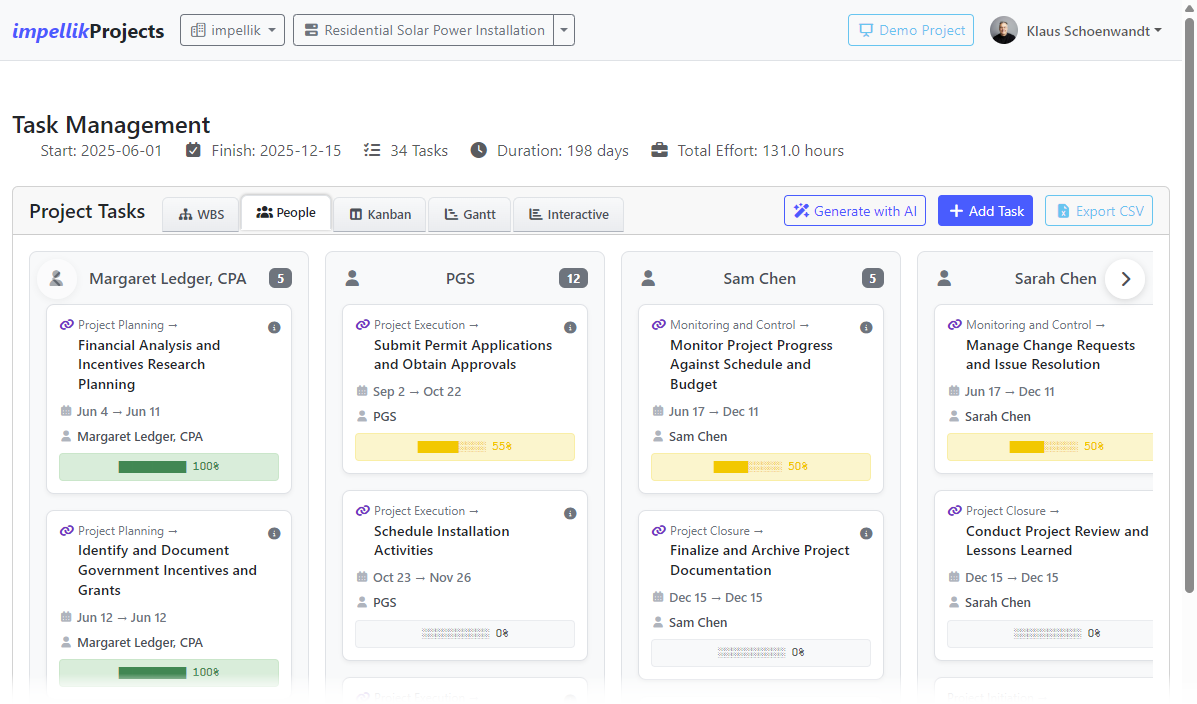
Features:
- Each person gets their own column
- Drag tasks between people to reassign
- See everyone's workload at a glance
3. Kanban View
Visualize workflow stages—ideal for agile teams.
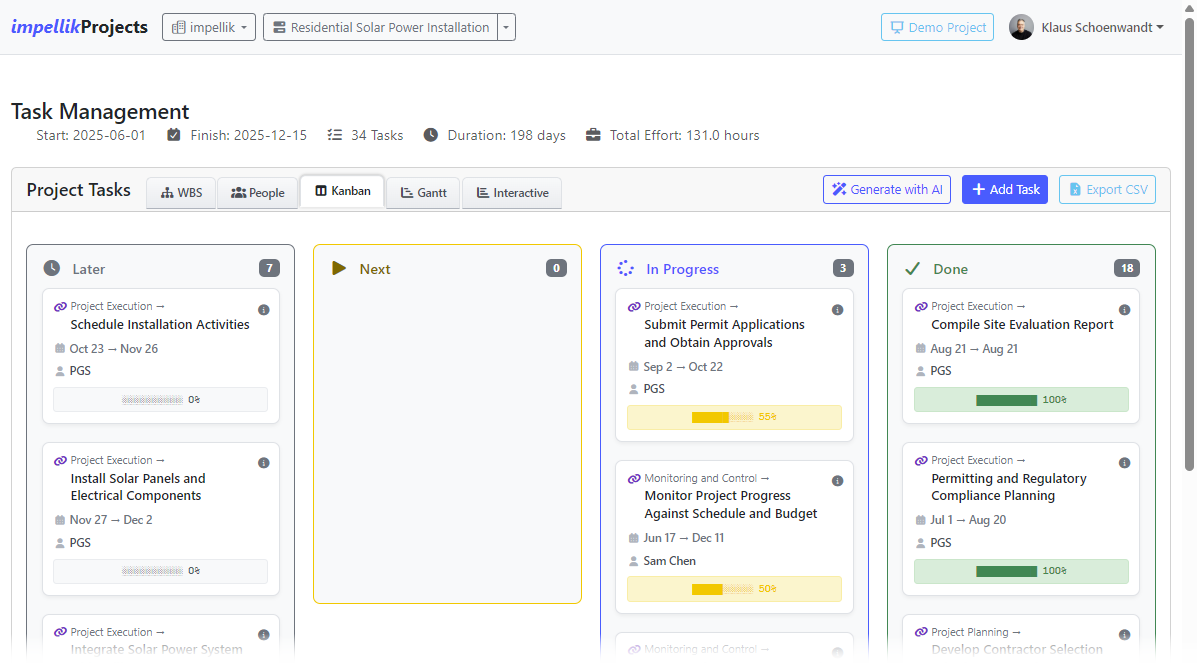
Features:
-
Columns:
- Later: Start date not yet arrived
- Next: Start date has arrived (ready to begin)
- In Progress: Currently being worked on (% > 0)
- Done: Completed tasks (% = 100)
-
Drag to Update - Dragging a task between columns automatically updates fields:
- Later → In Progress: Start date set to today, % complete set to 1%
- Next → In Progress: % complete set to 1%
- In Progress → Done: % complete set to 100%, completion date set to today
- Done → In Progress: Completion date cleared, % complete set to 90%
- In Progress → Next or Later: % complete set to 0%
-
Red Outline: Indicates incomplete data (missing effort, dates, etc.)
4. Gantt Timeline View
Predominantly a view-only timeline — best for stakeholder presentations and visual planning.
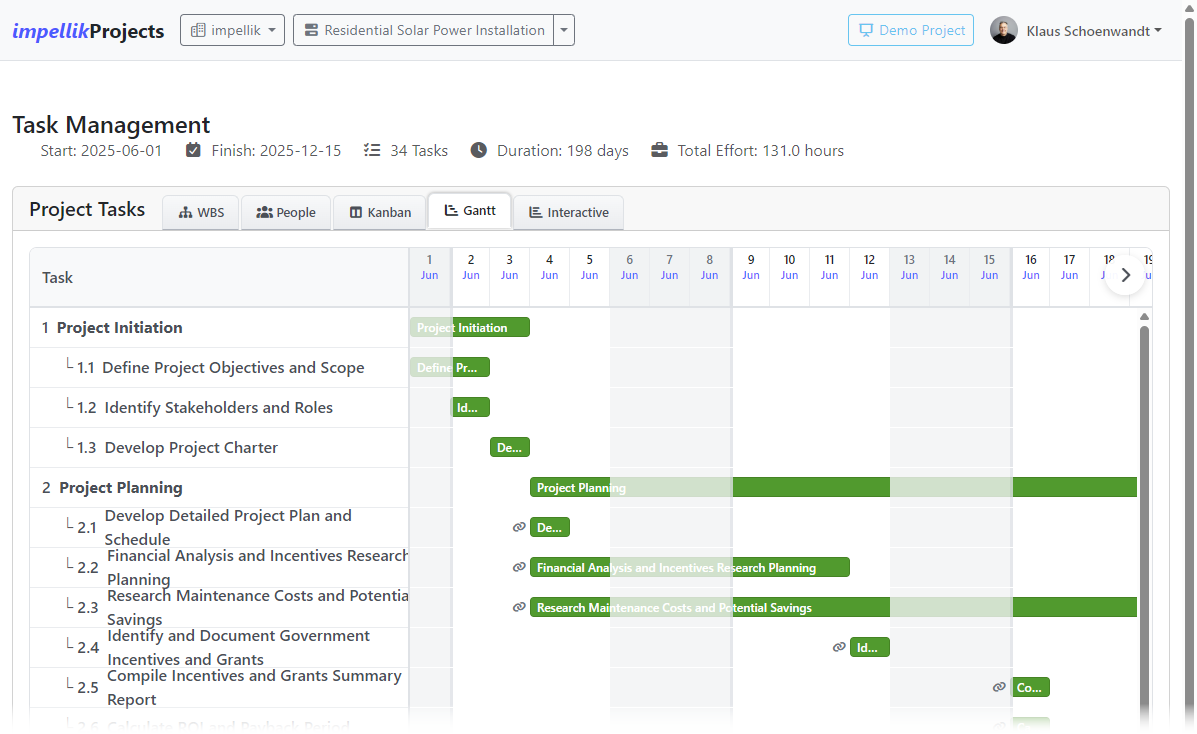
Features:
- Visual timeline with task bars showing start and end dates
- Working days shaded differently from non-working days (based on organization settings)
- Current date highlighted in light blue
- Dependency links shown as arrows between tasks
- Clickable task bars - Click any task to open the Task Details Modal where you can edit all fields (same as WBS Table View)
- Timeline navigation:
- Use left/right arrow buttons (in circles) to scroll through time
- Or use the horizontal scrollbar at the bottom
5. Interactive Gantt View
Drag-and-drop scheduling tool—great for dynamic planning.
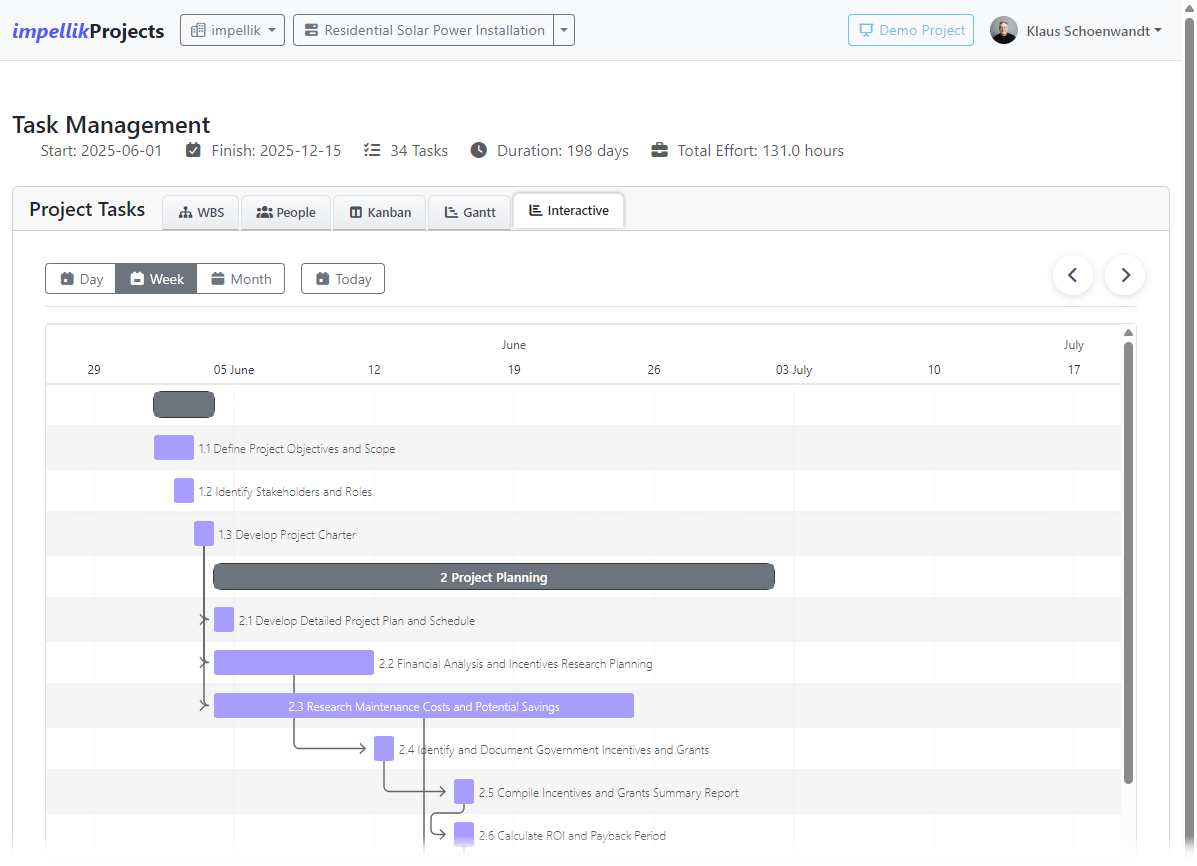
Features:
- Drag Tasks to Schedule: Drag unscheduled tasks onto the timeline
- Adjust Dates: Drag task bars to change start/end dates
- Update Progress: Drag the progress bar within a task to update completion %
- Double-click task bars to open Task Details Modal for detailed editing
- View Modes: Day, Week, or Month view
- Today Button: Jump to today's date
- Parent Task Protection: Parent tasks are dark gray and locked (can't drag them)
Color Coding:
- Green: Completed tasks (100%)
- Blue: In progress (1-99%)
- Red: Overdue (end date passed, not 100%)
- Gray dashed: Unscheduled tasks
- Dark charcoal: Parent tasks (read-only)
Task Dependencies
Dependencies link tasks together: "Task B can't start until Task A finishes."
Why Use Dependencies?
- Model real-world constraints (e.g., "Can't test code until it's written")
- Automatic date calculations (if Task A slips, Task B's dates adjust)
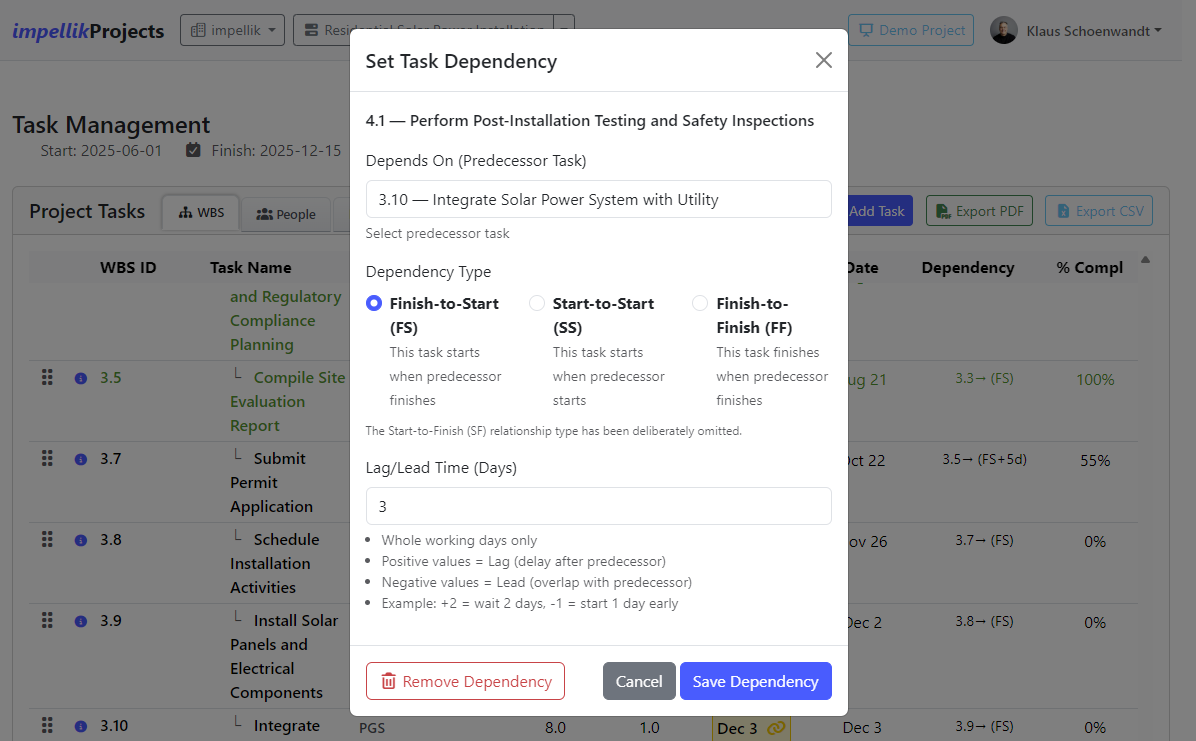
Dependency Types:
- FS (Finish-to-Start): Task B starts when Task A finishes [Most common]
- SS (Start-to-Start): Task B starts when Task A starts
- FF (Finish-to-Finish): Task B finishes when Task A finishes
- SF (Start-to-Finish): Task B finishes when Task A starts [Not used in this application]
Lag and Lead:
- Lag: Add a delay (e.g., "Wait 2 days after Task A before starting Task B")
- Lead: Allow overlap (e.g., "Start Task B 1 day before Task A finishes")
Step-by-Step: Add a Dependency
-
Open Task Details
- Click a task to open its detail modal
-
Set Dependency
- Click "Set Dependency" or edit the Dependency field
- Select the predecessor task (the task that must happen first)
- Choose dependency type (FS, SS, FF)
- Add lag/lead days if needed (positive = lag, negative = lead)
-
Save
- The system validates no circular dependencies exist
- If Task A depends on B, and B depends on A, you'll get an error
-
View Dependencies
- WBS Table and Gantt Timeline views show dependency link icons
- Interactive Gantt view shows dependency arrows
- Hover over the link/arrow to see details
Tracking Task Progress
As work gets done, update task completion. This is crucial for automatically generating meaningful status reports - the AI uses your actual progress data to create accurate project insights.
Step-by-Step:
-
Update Percent Complete
- Open the task detail modal
- Set % Complete (0-100%)
- Or use the Interactive Gantt to drag the progress bar
-
Enter Actual Effort
- Actual Effort: Hours actually spent (might differ from planned effort)
- Required when you mark a task 100% complete
-
Set Completion Date
- When % reaches 100%, set the Completion Date
- The system calculates Actual Duration (working days from start to completion)
-
Parent Tasks Update Automatically
- Parent % complete = weighted average of children (based on effort)
- Parent effort = sum of child efforts
- Parent dates = earliest child start to latest child end
Example:
Parent: "Design Phase"
  Child 1: "Wireframes" (10 hours, 50% complete)
  Child 2: "Mockups" (20 hours, 100% complete)

Parent % Complete = ((10 * 0.5) + (20 * 1.0)) / 30 = 83%
Parent Effort = 30 hours
AI Task Generation
Let the AI suggest tasks based on your charter and requirements.
Step-by-Step:
-
Click "Generate Tasks with AI"
- The button appears once you have a charter and requirements
- ⚠️ Caution: This will erase all existing tasks (whether created manually or with AI). Make sure you want to start fresh before proceeding.
-
AI Creates Tasks
- The AI reads your charter and requirements
- It proposes a WBS with parent and child tasks
- Tasks are aligned to your requirements
-
Review and Edit
- The AI's tasks are a starting point—customize them
- Add, remove, or reorder as needed
- Adjust effort and duration estimates
Reports
What are Reports? Professional documents you share with stakeholders to communicate project status.
Why Use Reports? They provide snapshots of your project at specific points in time. Great for executives, clients, or audits.
Creating a Report
Step-by-Step:
-
Go to Reports
- From Project Overview, click "View Reports"
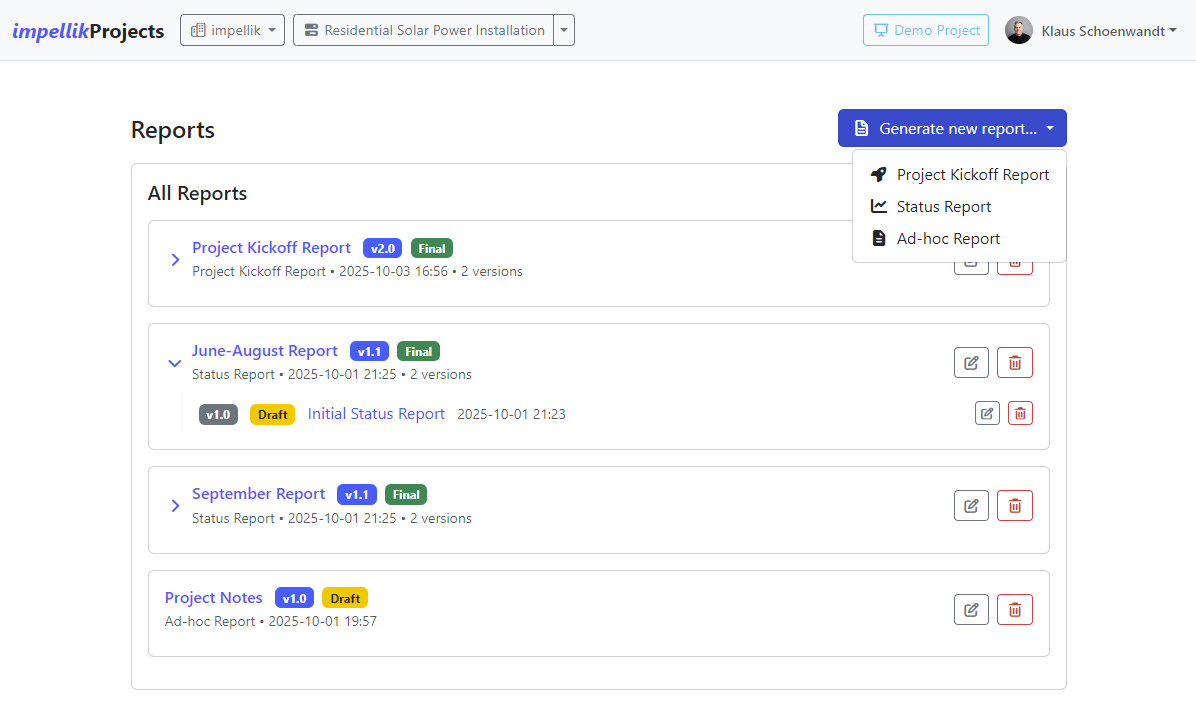
-
Choose Report Type
- Click "Generate new report…" dropdown
- Select one of three report types:
- Project Kickoff Report: Initial project launch document
- Status Report: AI-generated progress report with real-time metrics
- Ad-hoc Report: Custom report you write yourself
-
AI Status Report (Recommended)
The Status Report is the most powerful option—it combines AI analysis with real project data.
Step-by-Step Status Report Creation:
1. Enter Reporting Period Dates
- From Date: Start of reporting period
- To Date: End of reporting period
- Next Period End: When your next report will cover through
Example: If reporting on January 1-15, your next period might be January 16-31
2. Data Quality Check (Optional but Recommended)
- The system automatically checks for data quality issues:
- Missing task dates
- Tasks with no effort estimates
- Incomplete task data
- You'll see warnings if issues are found
- You can choose to:
- Fix the issues first (recommended for accurate reports)
- Ignore and continue (if you need the report urgently)
3. Additional Context (Optional)
- Add extra instructions for the AI to consider
- Examples:
- "Focus on budget variances"
- "Highlight risks related to vendor delays"
- "Emphasize progress on Phase 2 deliverables"
4. AI Analysis - Clarification Questions (Recommended but Optional)
- The AI asks intelligent questions about your project:
- "What challenges did the team face this period?"
- "Are there any scope changes being considered?"
- "What are the top risks for next period?"
- You can answer some, all, or none of these questions
- Your answers help the AI write more accurate content
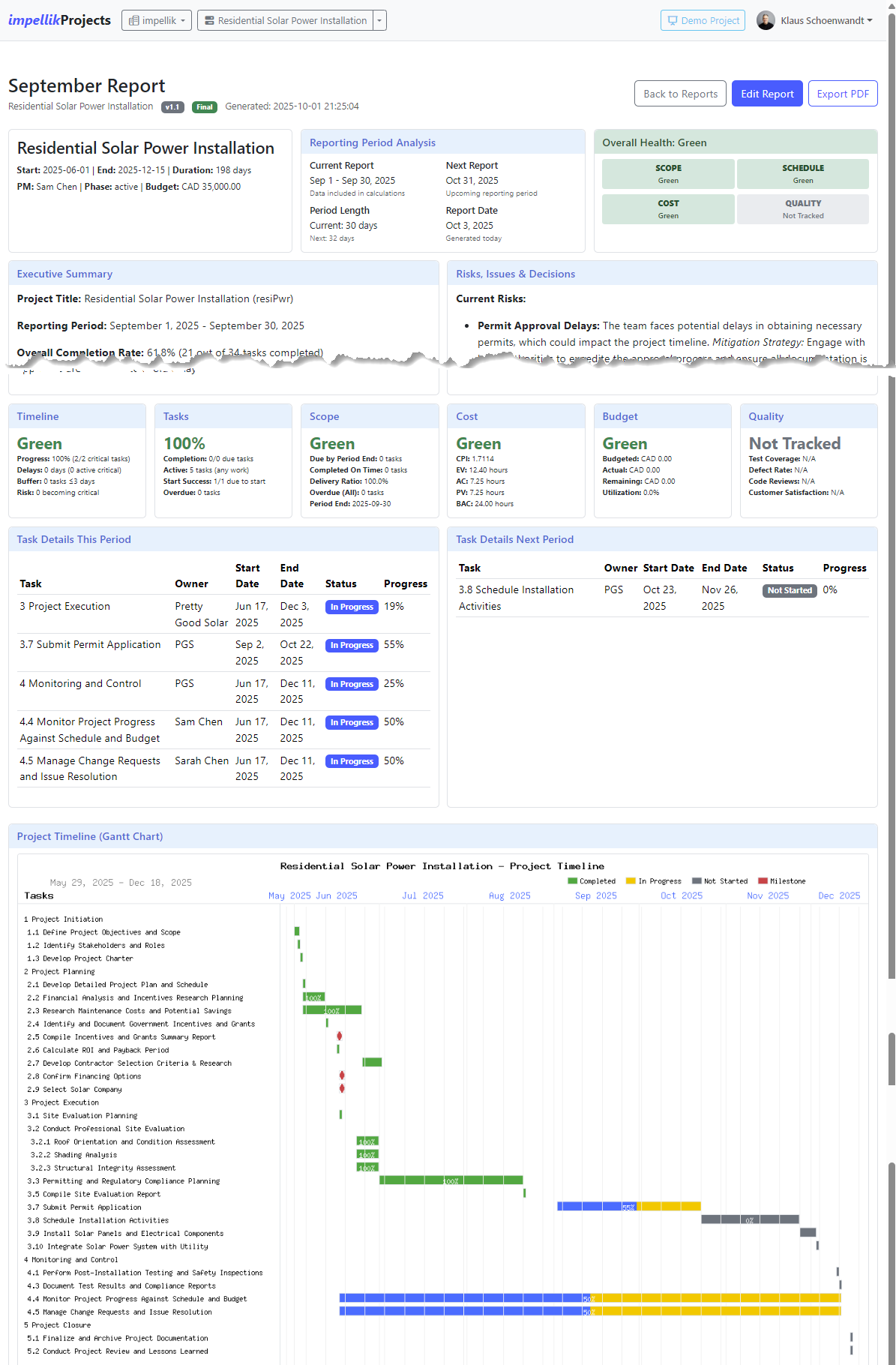
5. AI Generates Report Content
- The AI creates two sections based on your answers:
- Executive Summary: High-level overview of project health and progress
- Risks, Issues & Decisions: Key items requiring stakeholder attention
- All other sections use real data from your project:
- Timeline metrics from Critical Path analysis
- Task completion statistics
- Scope delivery performance
- Cost/effort metrics (EVM)
- Budget utilization
- Task details for current and next periods
- Embedded Gantt chart (PNG image)
-
Edit Report (Limited Fields)
- After generation, you can only edit:
- Report Title: Rename the report
- Executive Summary: Adjust AI-generated overview
- Risks, Issues & Decisions: Modify AI-generated content
- All other sections display real data and cannot be edited (this ensures accuracy)
- After generation, you can only edit:
-
Report Families
- Multiple versions of the same report are grouped as a "family"
- Great for weekly/monthly recurring reports
- Version number increments automatically (1.0, 1.1, 1.2, etc.)
Understanding Project Health Indicators
The Status Report displays overall health based on three factors: Schedule, Scope, and Cost. The system uses intelligent logic to determine overall project health:
Health Calculation Logic:
| Schedule | Scope | Cost | Overall | Interpretation |
|---|---|---|---|---|
| 🟢 Green | 🟢 Green | 🔴 Red | 🟡 Amber | On time, full scope, over budget - manageable |
| 🟢 Green | 🟢 Green | 🟡 Amber | 🟢 Green | Delivering perfectly with minor cost variance |
| 🔴 Red | 🟢 Green | 🟢 Green | 🔴 Red | Schedule slipping - compounds all other risks |
| 🟢 Green | 🔴 Red | 🟢 Green | 🔴 Red | Missing deliverables - core failure |
| 🟡 Amber | 🟡 Amber | 🟢 Green | 🟡 Amber | Some delivery concerns but cost controlled |
Key Insight: Schedule and Scope issues are weighted more heavily than Cost issues because they typically indicate fundamental project problems.
Understanding EVM (Earned Value Management)
The Status Report uses Earned Value Management to measure cost efficiency. Here's what the metrics mean:
Cost Performance Metrics:
-
CPI (Cost Performance Index): How efficiently you're using effort/hours
- CPI > 1.0 = Under budget (efficient)
- CPI = 1.0 = On budget
- CPI < 0.9 = Over budget (inefficient)
-
EV (Earned Value): Hours of work completed (based on % complete)
- Example: If a 10-hour task is 50% done, EV = 5 hours
-
AC (Actual Cost): Hours actually spent on work
- Comes from "Actual Effort" entered on tasks
-
PV (Planned Value): Hours that should have been completed by now
- Based on task schedules and reporting period
-
BAC (Budget at Completion): Total budgeted hours for the period
- Sum of all task effort estimates
Example:
CPI: 1.0217
EV: 55.00 hours (work completed)
AC: 53.83 hours (effort spent)
PV: 53.83 hours (work planned)
BAC: 63.00 hours (total budget)
Interpretation: CPI > 1.0 means you're getting more work done per hour than planned—you're efficient!
Why This Matters: Tracking actual effort on tasks (especially when marking them 100% complete) ensures accurate cost metrics in your reports.
Viewing and Deleting Reports
View a Report:
- Click the report card
- See read-only formatted view
- Download as PDF (if available)
Delete a Report:
- Click the trash icon on the report card
- Confirm deletion
Delete a Report Family:
- Click the trash icon on the family header
- Deletes all versions in that family
Organization Settings
Who Can Access? Only Organization Owners and Admins.
What Can You Configure?
Accessing Settings
- Click the Organization Selector (left side of nav bar)
- Click "Manage [Your Org Name]" in the dropdown
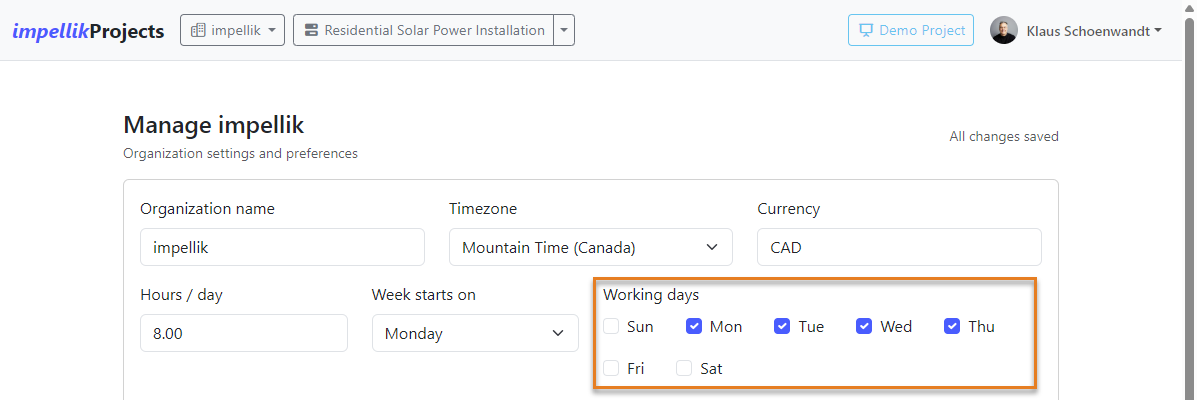
Organization Details
Fields:
- Organization Name: Your company/team name
- Timezone: Affects date/time displays
- Currency: Default currency for all projects
- Hours per Day: Standard workday (used for duration calculations)
- Week Starts On: Sunday or Monday
- Working Days: Check boxes for days your team works
Why Working Days Matter:
- Task durations skip non-working days
- Example: If you work Mon-Thu, a "3-day task" starting on Wednesday will end on Monday (skipping Fri-Sun)
Organization Description:
- Appears on your organization's landing page
- Use the rich text editor (bold, italic, lists)
- Great for introducing new members to your team
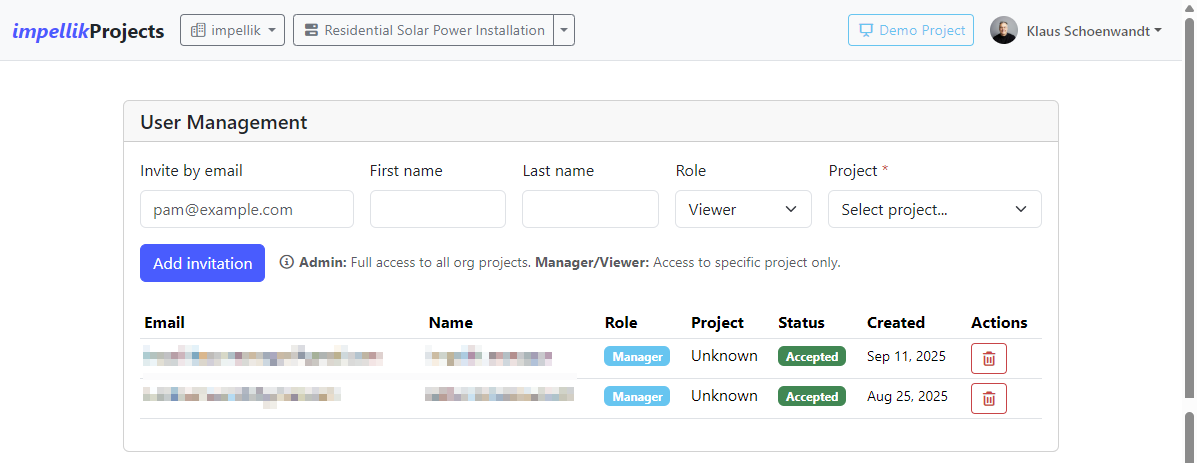
User Management
Who Can You Invite?
- Admins: Full access to all org projects
- Managers: Access to specific projects (you choose which)
- Viewers: Read-only access to specific projects
Step-by-Step: Invite a User
-
Enter Email
- Type the person's email address
- Optionally add their first/last name
-
Select Role
- Admin: Choose if they should manage all projects
- Manager or Viewer: Choose a specific project from the dropdown
-
Send Invitation
- Click "Add invitation"
- The system creates a pending invitation
- When they log in, they'll automatically join
Managing Invitations:
- See all pending and accepted invitations in the table
- Delete invitations you sent by mistake
- Can't invite someone who's already an Org Owner/Admin (they already have access)
FAQ
General Questions
Q: What does "impellik" mean? Why is it called that?
A: Glad you asked! The name has a bit of personality behind it.
impellik comes from the Latin word impellere, meaning "to drive forward" or "to propel"—which is exactly what good project management does: it drives your ideas forward from concept to completion.
But why not just "impel"? Well, we added a more robust, German-sounding ending (-ik) to give it strength and presence. And if you look closely, that final k is a little nod to Klaus, the creator. Think of it as a signature hidden in plain sight.
So when you use impellik, you're being driven forward with a touch of European flair and a founder's fingerprint. Pretty cool, right?
Q: What's the difference between "Add Your Organization" and "Sign In"?
A: Great question! This trips up a lot of people.
- "Add Your Organization": You're creating a brand new organization (you'll be the owner). Use this if you're starting fresh.
- "Sign In": You already have an account or someone invited you. Use this if you're joining an existing organization.
Tip: If someone sent you an invitation, always use "Sign In," not "Add Your Organization."
Q: I belong to multiple organizations. How do I switch between them?
A: Easy! Look at the top-left of the navigation bar:
- Click the Organization Selector (it shows your current org name)
- Pick the organization you want from the dropdown
- You'll switch immediately—all your projects for that org will load
Q: Can I change my organization's working days after I create it?
A: Yes! Go to Organization Settings (via the Organization Selector dropdown) and update the working days checkboxes.
Important: Changing working days affects future task duration calculations. Existing tasks won't automatically recalculate, but new tasks and changes will use the new settings.
Q: What happens if I uncheck Friday as a working day?
A: The system will treat Friday as a non-working day (like a weekend).
- Task Durations: A "5-day task" starting Monday will end on the following Monday (skipping Friday, Saturday, Sunday).
- Gantt Charts: Fridays will be shaded as non-working days.
Use Case: Some teams work 4-day weeks (Mon-Thu). Unchecking Friday ensures accurate scheduling.
Permission & Access Questions
Q: I'm an Admin, but I can't access Organization Settings. Why?
A: This is usually a session issue. Try this:
- Sign out
- Sign back in
- If you belong to multiple orgs, make sure you selected the right one
If it still doesn't work, you might be an Admin in one org but not another. Check which org you're currently viewing (top-left nav).
Q: What's the difference between Org Admin and Manager?
A:
| Role | Scope | Permissions |
|---|---|---|
| Org Admin | All projects in the organization | Can edit/delete all projects, invite users, manage org settings |
| Manager | Specific project(s) assigned to them | Can edit assigned projects, cannot delete projects, cannot manage org |
Key Difference: Admins see and control everything. Managers only see projects they're assigned to.
Q: I invited someone, but they can't see the project. What happened?
A: Check these things:
- Did They Accept? Look at User Management—is their status "Accepted" or "Pending"?
- Right Organization? Make sure they signed into the correct org (if they belong to multiple).
- Right Project? If they're a Manager or Viewer, did you assign them to the correct project?
Pro Tip: If they're still stuck, delete the invitation and send a new one. Sometimes that clears it up.
Charter Questions
Q: Do I have to fill out every field in the charter?
A: No! Only these 4 core fields are required:
- Project Description: What you're trying to accomplish and why
- Objectives: Specific, measurable goals
- Major Deliverables: Main outputs your project will create
- Key Stakeholders: People who matter to project success
The 5 recommended (but optional) fields are:
- Success Criteria
- In-Scope
- Out-of-Scope
- Key Risks
- Funding Source/Constraints
Everything else (Strategic Alignment, KPIs, Schedule Assumptions, etc.) is optional. Add what's useful for your project.
Q: Can I edit the charter after I approve it?
A: No. Once a charter is approved, it becomes read-only and cannot be edited.
Why? Approved charters represent a formal agreement on project scope and direction. Locking them ensures the baseline remains stable and unchanged.
If you need changes: Best practice is to use formal change control processes to document and approve any modifications to an approved charter.
Q: What's the difference between AI-Guided and Self-Directed charter?
A:
| AI-Guided | Self-Directed |
|---|---|
| Step-by-step (one topic at a time) | All topics on one page |
| AI suggests content for each section as you progress | AI available for each section individually - you choose when to use it |
| Great for beginners | Great if you know what you're doing |
| Slower but more guided | Faster if you have content ready |
Which Should I Use? If you're new to charters or want help, start with AI-Guided. If you've done this before, Self-Directed is faster.
Note: Both paths offer AI assistance - the difference is in how you navigate through the topics.
Requirements Questions
Q: How many requirements should I have?
A: There's no magic number! It depends on your project.
- Small Project: 10-20 requirements
- Medium Project: 20-50 requirements
- Large Project: 50+ requirements
Quality over Quantity: It's better to have 15 clear, detailed requirements than 50 vague ones.
Q: What's the difference between a Section and a Topic?
A:
- Section: A category or grouping (e.g., "User Interface," "Performance")
- Topic: A specific requirement within a section (e.g., "Login page must load in under 2 seconds")
Think of it like a book: Sections are chapters, topics are individual paragraphs.
Q: Should I version my requirements?
A: Version when you have significant changes:
- After a major milestone
- When stakeholders request big additions
- When scope changes significantly
Don't version for minor tweaks—just edit the existing requirements.
Why Version? It creates a historical record. If someone asks, "What were the requirements in Phase 1?" you can pull up that version.
Task Questions
Q: What's the difference between Effort and Duration?
A: This is the #1 task question!
- Effort: Total work hours (e.g., "This task takes 16 hours of work")
- Duration: Calendar days to complete (e.g., "This task will be done in 2 days")
Example:
- Effort: 16 hours
- Your team works 8 hours/day
- Duration: 2 days (16 hours ÷ 8 hours/day)
Why It Matters: If your working days are Mon-Fri and you start a "3-day task" on Thursday, it won't finish until Monday (because it skips the weekend).
Q: I set a task to 100%, but it won't let me close the modal. Why?
A: When you mark a task 100% complete, you must enter Actual Effort (how many hours it actually took).
Why? This lets you compare planned vs. actual effort—crucial for improving future estimates.
Exception: Parent tasks don't need manual actual effort—it's calculated from their children.
Q: Why can't I edit a parent task's effort or dates?
A: Parent tasks are calculated automatically from their children. This prevents data conflicts.
What's Calculated on Parents:
- Effort: Sum of child efforts
- Duration: Working days from earliest child start to latest child end
- % Complete: Weighted average of child completion (based on effort)
- Actual Effort: Sum of child actual efforts
- Actual Duration: Same as duration (start to end dates)
To Change a Parent: Edit the child tasks instead. The parent will update automatically.
Q: What does "Actual Duration" mean?
A: Actual Duration is the number of working days from when the task started to when it finished.
For Leaf Tasks:
- Calculated from Start Date to Completion Date
- Skips non-working days
For Parent Tasks:
- Same as Duration (earliest child start to latest child end)
- No separate calculation needed
Example:
- Start: Monday
- Complete: Thursday
- Working Days: Mon-Thu (Fri is off)
- Actual Duration: 4 days
Q: How do I make a task start automatically when another task finishes?
A: Use a Finish-to-Start (FS) dependency.
Step-by-Step:
- Open the second task (the one that should wait)
- Click "Set Dependency"
- Select the first task as the predecessor
- Choose "FS (Finish-to-Start)"
- Save
Now, if Task A's end date changes, Task B's start date will automatically adjust.
Q: What happens if I create a circular dependency?
A: The system will stop you! You'll see an error message.
Example of Circular Dependency:
- Task A depends on Task B
- Task B depends on Task A
- ❌ This is circular—neither can start!
Solution: Review your dependencies and remove the circle.
Q: Can I see all tasks assigned to me?
A: Yes! Use the People View:
- Go to the Tasks page
- Click the "People" tab
- Find your name—all your tasks are in your column
Budget Questions
Q: Do I have to track budget?
A: No, budget is optional. Some projects track finances closely, others don't need to.
When to Use Budget:
- Projects with significant expenses
- When you need to report spending to stakeholders
- Projects where staying under budget is critical
When to Skip Budget:
- Small internal projects
- Projects with no financial tracking requirements
Q: What's the difference between Budgeted Amount and Actual Amount?
A:
- Budgeted Amount: What you planned to spend (your estimate)
- Actual Amount: What you've actually spent so far
Variance = Budgeted - Actual
- Positive variance (green): Under budget 🎉
- Negative variance (red): Over budget ⚠️
Q: Can I add my own budget categories?
A: Yes! Click "Add Category" and create a custom category.
Examples:
- Marketing
- Legal Fees
- Cloud Hosting
- Consulting
Reports Questions
Q: What's the difference between Draft and Final reports?
A:
- Draft: Work in progress, can be edited
- Final: Published version, typically shared with stakeholders
You Can Still Edit Finals—it's more of a status label than a hard lock.
Q: Can I download reports as PDFs?
A: Yes! Most reports include an "Export PDF" button that triggers your browser's print dialog with print-friendly formatting.
How to Export:
- Click the "Export PDF" button on the report
- In the print dialog, select "Save as PDF" as your printer
- Choose your save location
- Click "Save"
Alternative: You can also use your browser's print function (Ctrl+P or Cmd+P) and select "Save as PDF"
Technical Questions
Q: My changes aren't saving. What's wrong?
A: Try these steps:
- Check Your Internet Connection—the app saves to the server, so you need to be online.
- Look for an Error Message—there might be a popup or notification explaining the issue.
- Refresh the Page—sometimes a simple refresh fixes things.
- Sign Out and Back In—clears your session.
If none of that works, contact support or check the browser console for errors (F12 → Console tab).
Q: Can I use this on my phone?
A: The app is mobile-friendly, but some features work better on desktop:
- Good on Mobile: Viewing projects, checking tasks, reading reports
- Better on Desktop: Creating charters, editing tasks, using Gantt charts
Recommendation: Use desktop for planning and setup, mobile for quick checks.
Q: Does this work offline?
A: No, impellikProjects requires an internet connection. All data is stored on the server, so you need to be online to access it.
Why? This ensures real-time collaboration—everyone sees the same data instantly.
Q: How often does data sync?
A: Instantly! When you make a change:
- It saves to the server immediately
- Other users see the change right away
- No "Refresh" button needed
Auto-Save: Most forms auto-save every 1 second. You'll see a quick flash or message confirming the save.
Q: How do I delete my organization?
A: Only the Organization Owner can delete an organization.
- Go to Organization Settings (click your org name in the nav, then "Manage [Your Org]")
- Scroll to the bottom to the Danger Zone section (red border)
- Click "Delete Organization"
- In the confirmation modal, type your email address exactly as shown
- Click "Permanently Delete Organization"
- Confirm one final time
What gets deleted:
- The entire organization
- All projects (charters, requirements, skills, budgets, tasks, reports)
- All team members and invitations
- All historical data
This action is irreversible. Make sure you have backups of any data you need before proceeding.
Getting Help
Q: I'm stuck. How do I get help?
A: Try these resources:
- This User Guide: Search for your question (Ctrl+F)
- Demo Project: Click the "Demo Project" button in the nav to see a sample project with data
- Support: Contact your organization's admin or owner—they may have internal documentation
- Future Feature: AI Chatbot will be available soon to answer questions in real-time!
Q: Can I suggest a feature?
A: Yes! We'd love to hear your ideas. Contact your organization owner or reach out through your organization's feedback channel.
Last Updated: October 2025 Version: 1.0 Covers: impellikProjects (All modules through October 2025 update)